
# Login Process
To access FundMaster on your device, launch your preferred internet browser and input the web Internet Protocol address provided by your system administrator as shown below:

After inputting the access IP address, a user is directed to the login page where one is supposed to enter login credentials for authentication.
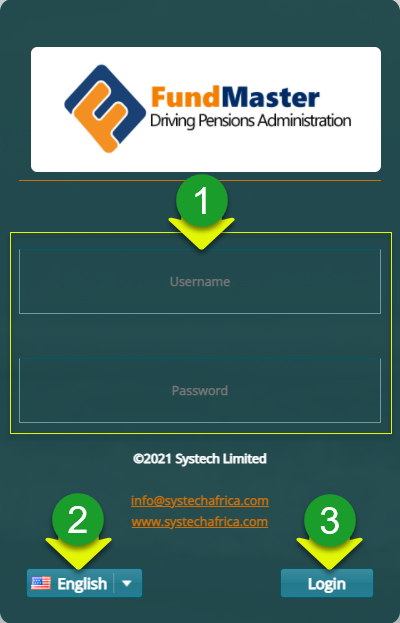
Note: to successfully access the login page, the IP address must be correct and the local area connection stable. The following is a screenshot of the login page:
Action
Type Username and Password respectively in text boxes labelled 1.
Click and select a preferred access language from the drop-down menu labelled 2.
Click the login button labelled 3 to log in to the system.
Tip
- The system is set to allow a user only three attempts at log in after which the account is locked. The locked account can only be reactivated by the system administrator.
# How to video
The following video demonstrates how to successfully login to FundMaster from your browser:
# Landing Page
This is the dashboard (with the main menu and other controls) seen on a user’s screen when one successfully logs in to FundMaster. See the screenshot below:
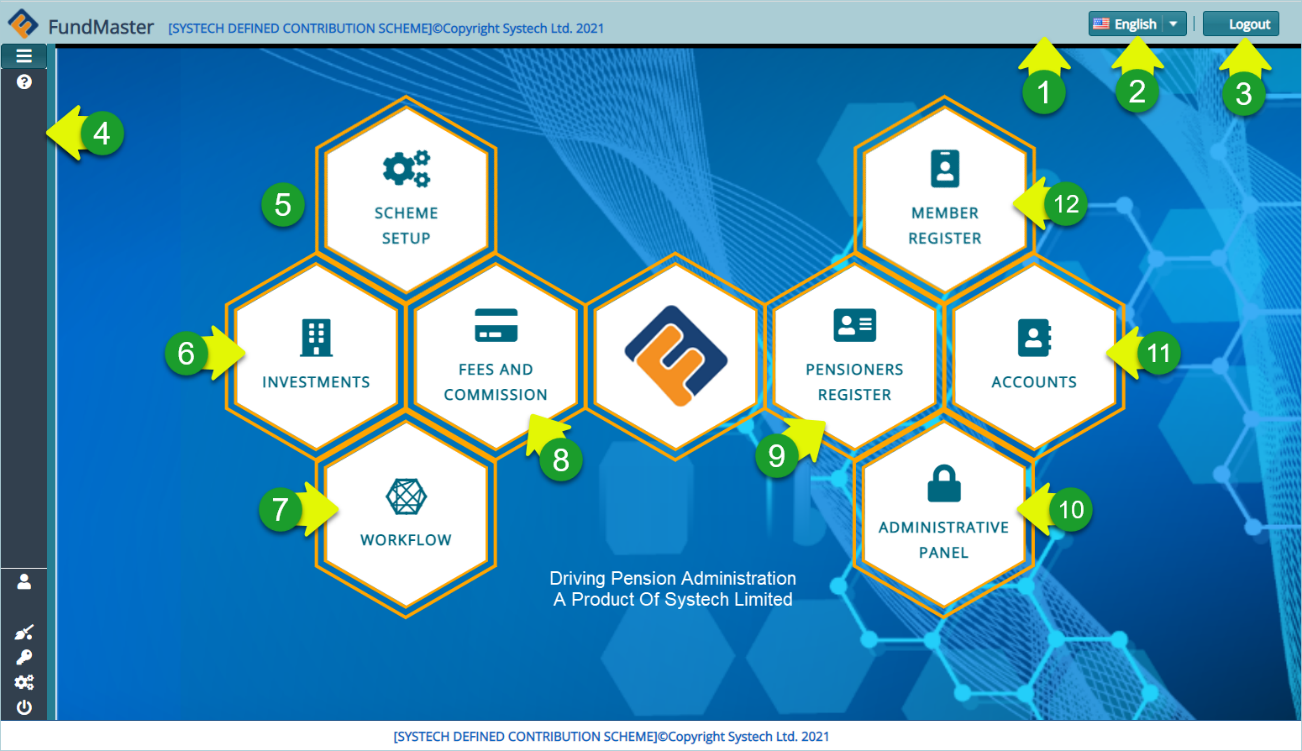
The circled numbers in the screenshot above correspond to the numbers in the following table that describe the key navigation clickable elements on the FundMaster landing page: +
| No. | Interface Elements | Description |
|---|---|---|
| 1. | Top menu bar | This is the bar where the system version trademark, the name of the running scheme, language drop-down menu, and logout button is located. |
| 2. | Language drop-down menu | Click to select a language of choice. This will render the navigation and content in the selected language. |
| 3. | Logout button | Clicking this button will terminate all the running processes and close the system. |
| 4. | Main menu bar | This is the location of the major menu. Click to expand and display more menu items. |
| 5. | Scheme Setup link | A shortcut to launching the scheme setup module. Click to open the setup page. |
| 6. | Investments link | A link to the Investments Module. |
| 7. | Workflow link | A link to the Workflow Module. |
| 8. | Fees and Commission link | A link to the Fees and Commission Module. |
| 9. | Pensioners Register link | A link to the Pensioners Register Module. |
| 10. | Administrative Panel link | A link to the Administrative Panel Module. |
| 11. | Accounts link | A link to the Accounts Module. |
| 12. | Member Register link | A shortcut to the Members Register Module. |
# How to Video
The following video shows interface walk through in FundMaster landing page: