
# Main Menu Bar
Clicking the hamburger icon on the upper-left corner of the landing page will enable a user to expand the menu bar, allowing access to more controls. The expanded menu bar displays a help tab, on the uppermost side, for accessing the help documentation.
Located on the lowermost side of the menu bar are more controls that enable other configurations for a user account. See screenshot below:
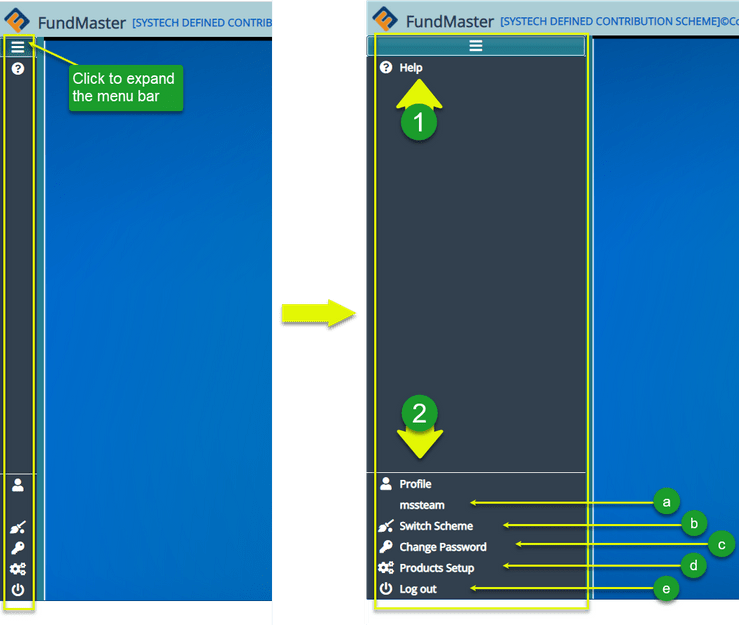
| No. | Element | Description |
|---|---|---|
| 1. | Help link | A link to the help documentation for user reference. Click to open the page. |
| 2. | Account config | A section with links for configuring user account details. |
| 2(a). | Profile | This is where the logged in user's profile name is displayed. |
| 2(b). | Switch Scheme | Allows a user to change from the currently running scheme to another without terminating a session. Note that a successful switch will change the scheme name on the uppermost bar |
| 2(c). | Change Password | Allows a user to change password for security reasons. |
| 2(d). | Products Setup | Clicking on this link will open the products page to view available products and create new. |
| 2(e). | Logout | Click to terminate all the running processes and close the current profile account ready to log in as a new user. |
# Product Setup
Clicking the Product Setup link labelled 2(d), will open a window displaying a list of all fund products in the system under the product tab and a list of product categories as shown in the next screenshot.
# Products
Clicking the Product tab will open a window displaying a list of all fund products in the system. From this window, the details of each product can be viewed, new products added, and the product sequence seen as shown below:
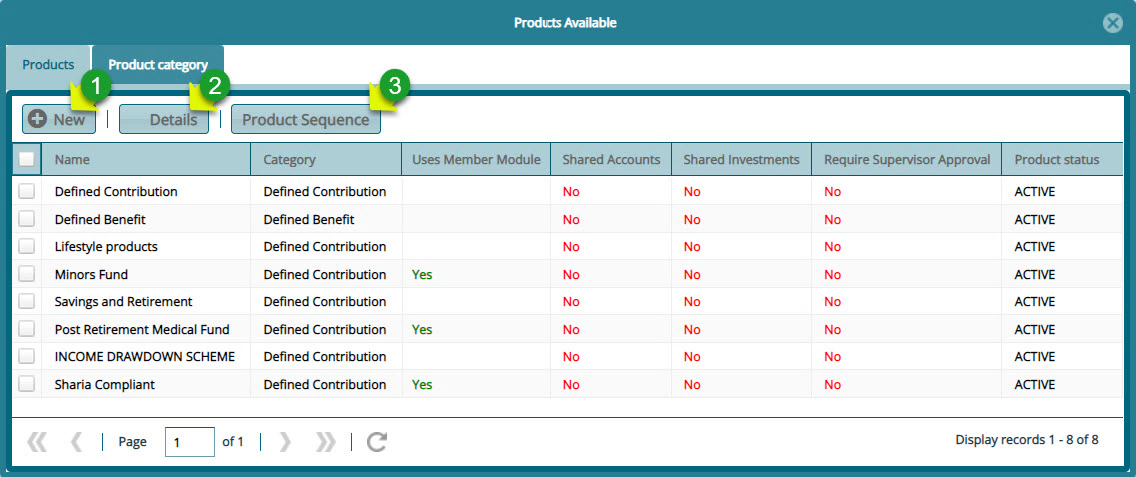
Action
Click label 1 button to add a new fund product.
Click label 2 button to view the details of a product.
Click label 3 button to see the product sequence.
# Product Categories
Clicking the Product Category tab will open a window displaying a list of all fund product categories. From this window, the details of each product category can be viewed, new product category added and removed from the system as shown below:
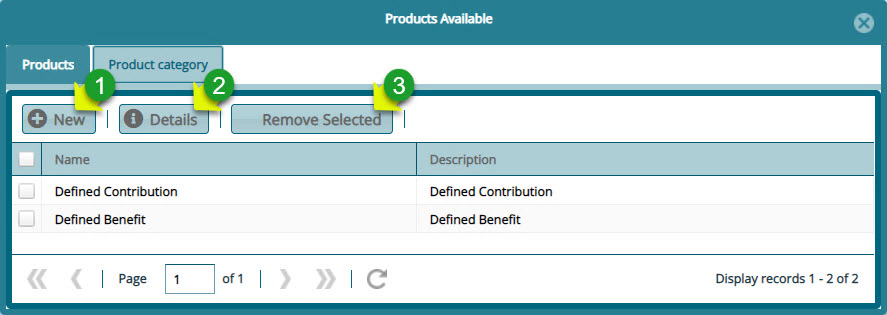
Action
Click label 1 button to add a new product category.
Click label 2 button to view the details of a product category.
Click label 3 button to remove a selected product category.