# Onboaring Members in Batch to the Member Register
Step 1: Navigate to FundMaster Landing Page:
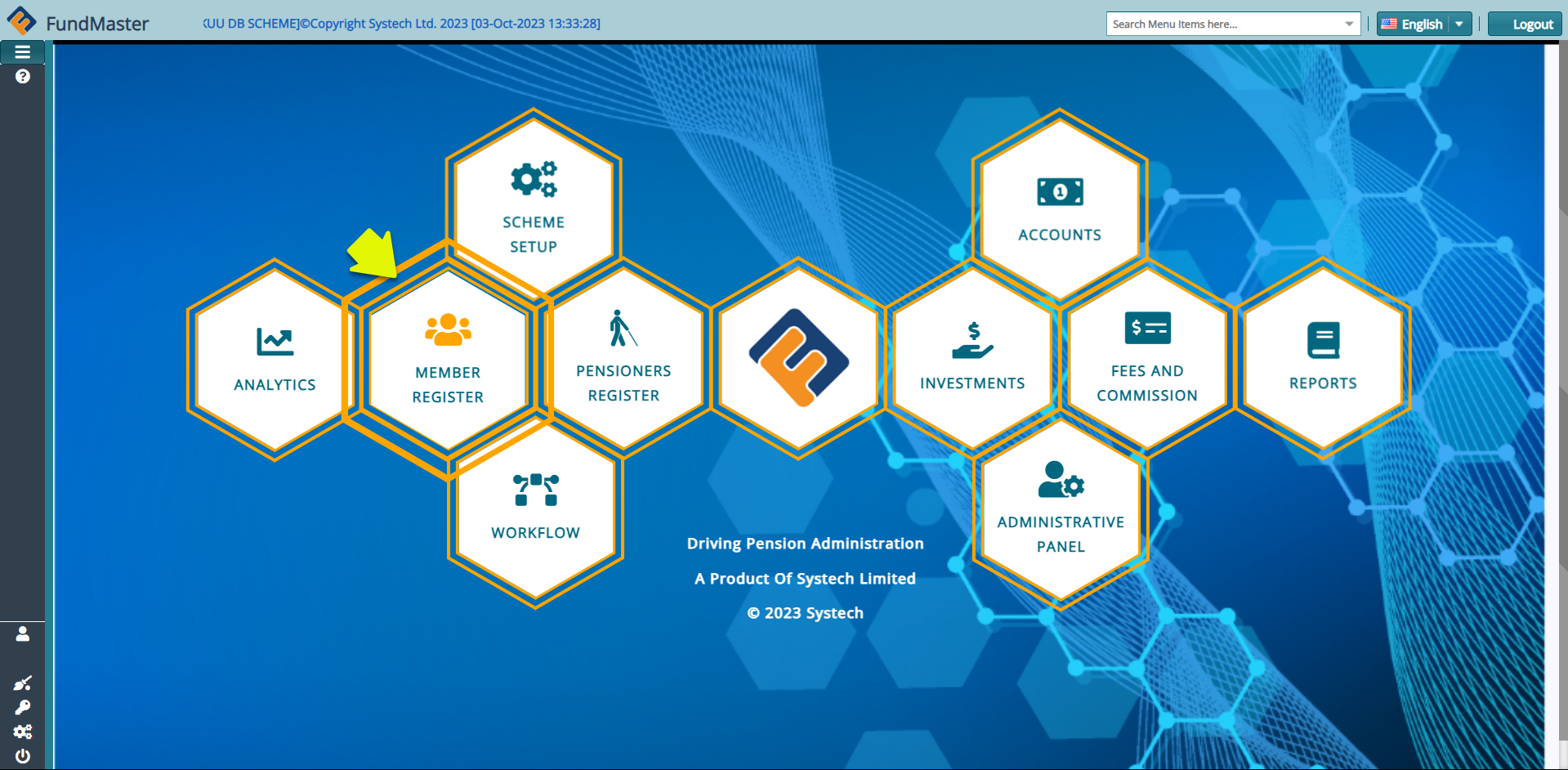
Action
- Click the Members Register hot link
Step 2: Locate the Members menu:
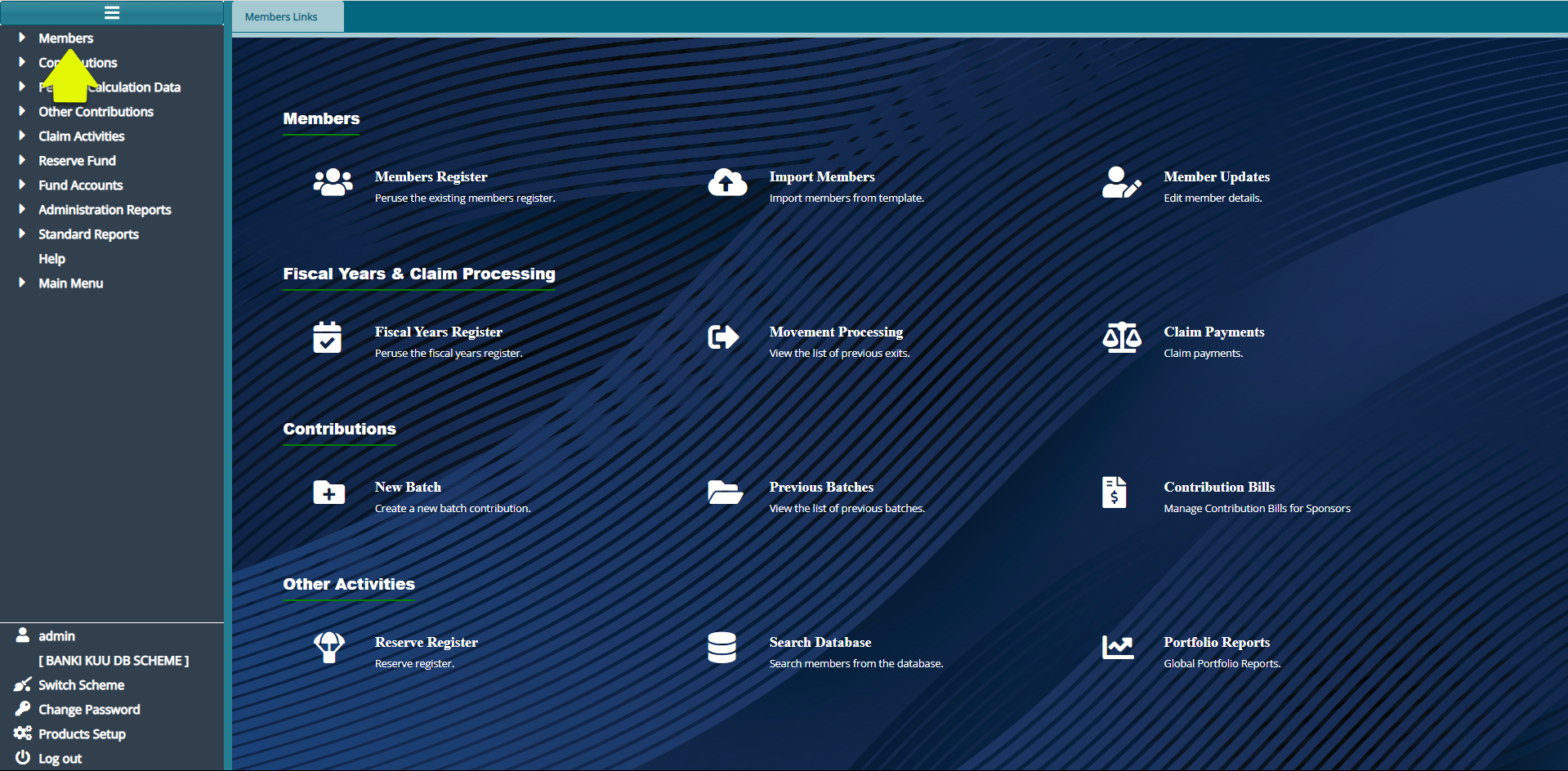
Action
- Click on the "Members" drop-down menu
Step 3: Navigate to Upload the Member Batch
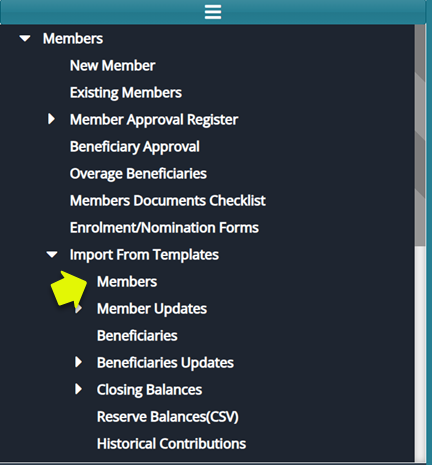
Actions:
Click on "Import from Templates" drop-down menu
Then click on "Members"
Step 4: Upload and Confirm Batch Members
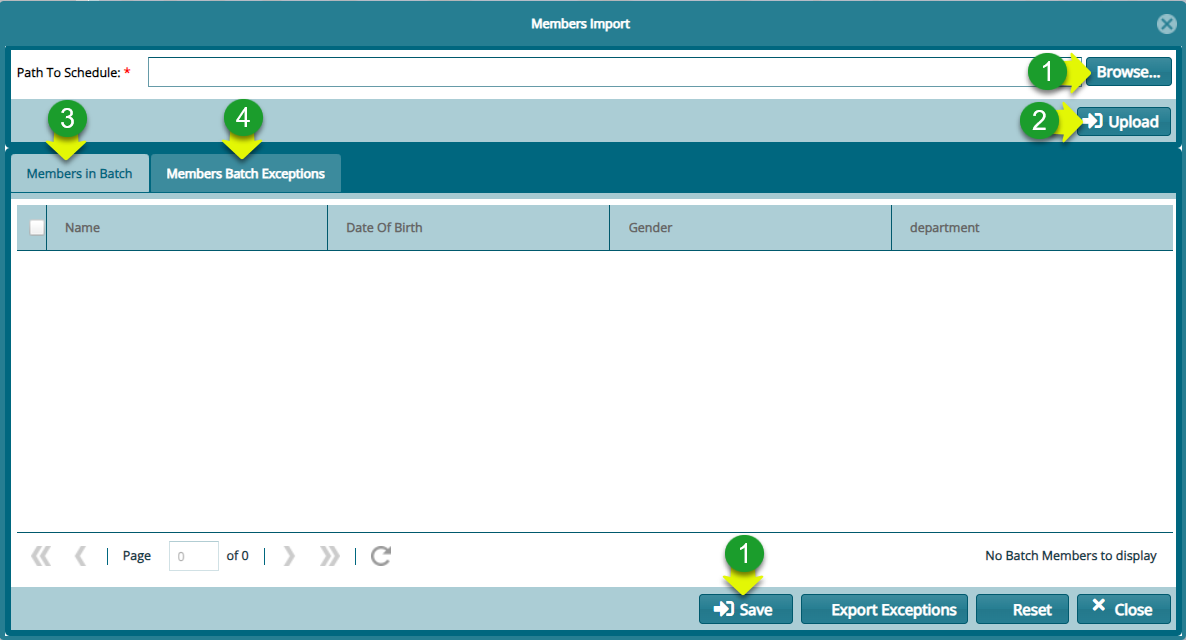
Actions
Click on "Browse" to locate the new member template that you have prepared
Click on "Upload" to add the members to the system
Click to confirm the "Member in batch" are the same number as those in your template
If not click to confirm the "Member Batch Exceptions"
If there is no exception, click on "Save"
Step 5: Navigate to the Members Batch Register for Approval Process
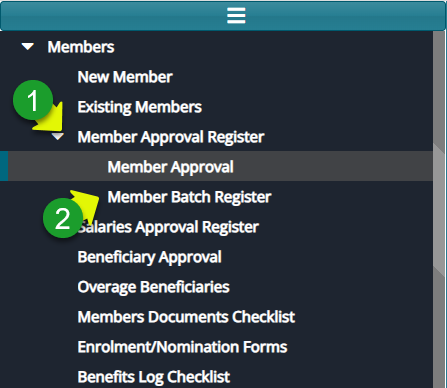
Action
Click on "Member Approval Register"
Click on "Member Batch Register"
Step 6: Authorize the Newly Onboarded Members:
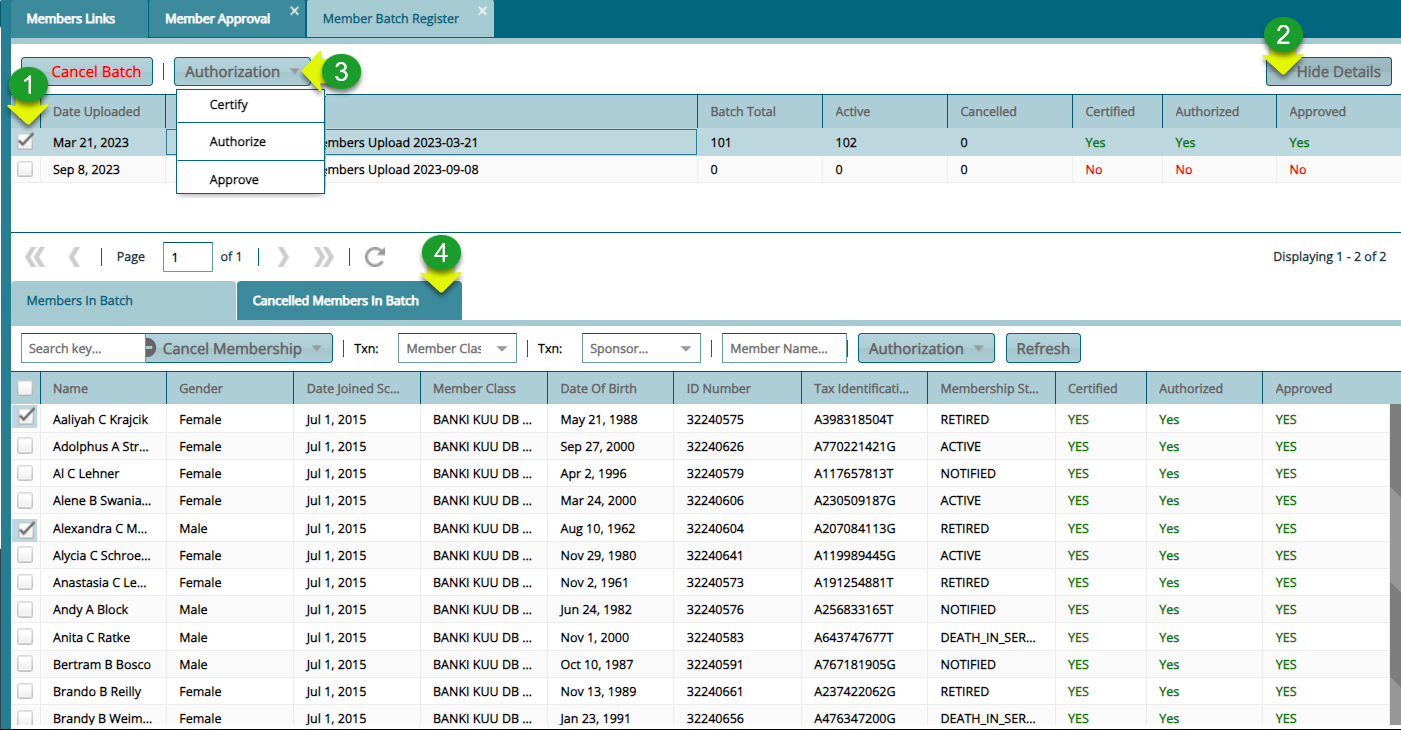
Actions
Click to select the batch record from the list of batches
Click on the "Show Details" button to see all members uploaded
Click on the "Authorization" drop-down menu to Certify, Authorize and Approve
Click on the "Cancel Members" in Batch to delete the selected members from the batch
Step 7: View the Newly Uploaded Members:
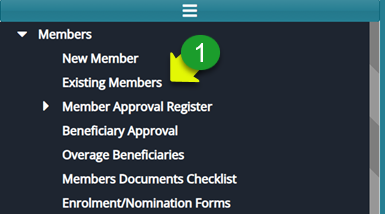
Action
- Click on "Existing Members"
Step 8: View Listed Employers on the Sponsor Register:
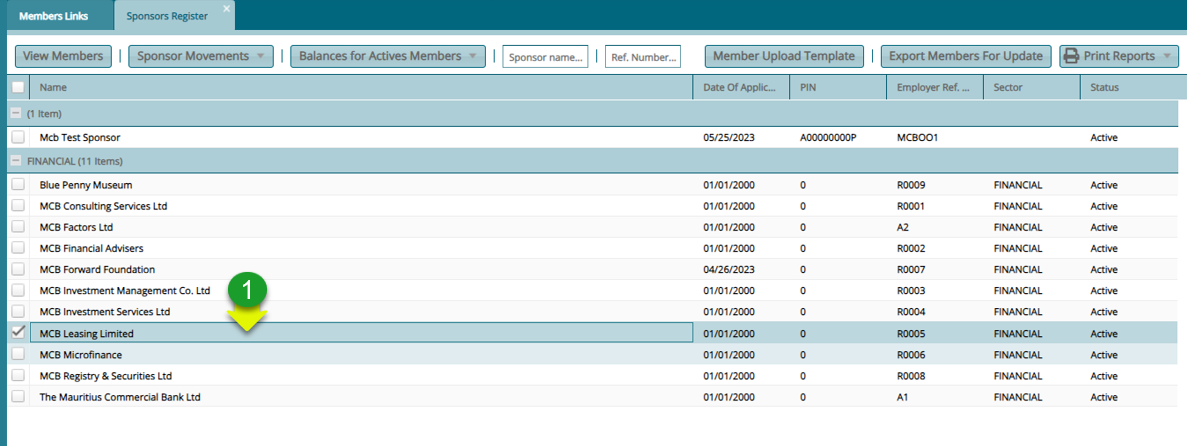
Actions
- Double Click on a selected Sponsor from the list to open the member register
Step 9: View all the Members Under an Employer:
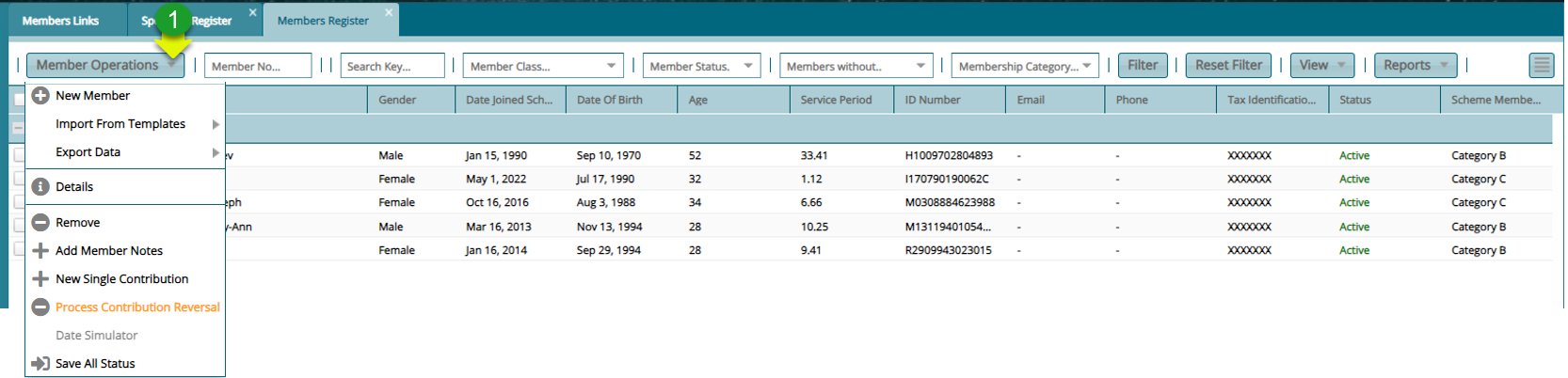
Actions
- Click on the "Members Operations" drop-down and select an action such as creating a new member
Step 10: Navigate to View the Details of a Selected Member:
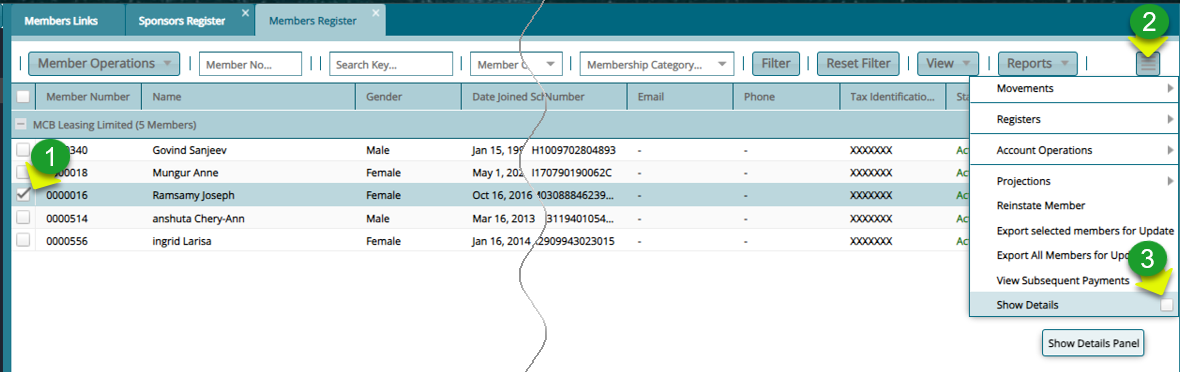
Actions
Click to select an individual member from the list
Click the "Hamburger" icon on the upper right side to open the drop-down menu
Click the "Show Details" checklist to load a section with the members details and select an action such as creating a new member
Alternatively Double Click on the selected member record to view the details
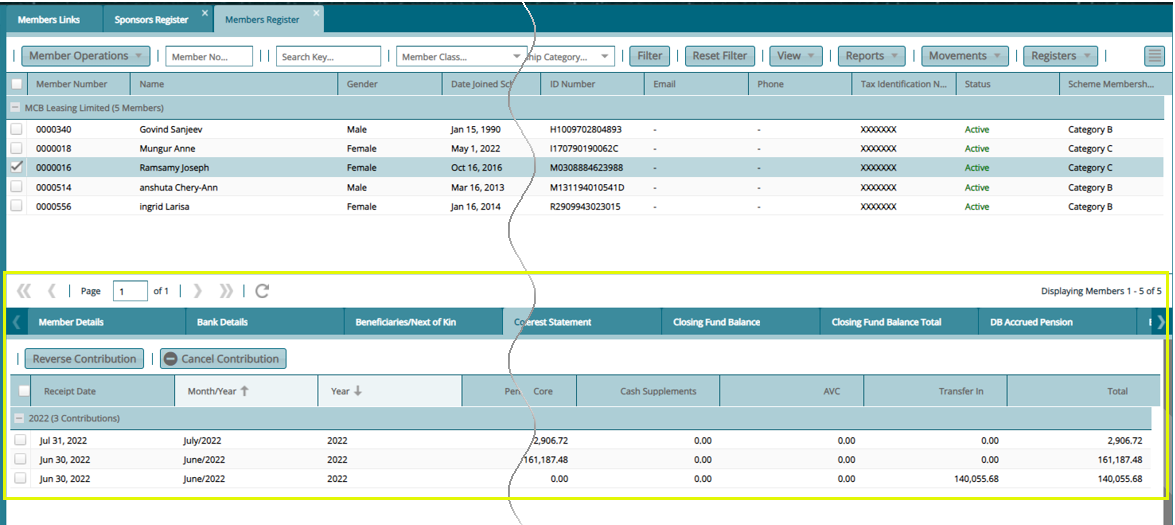
Step 11: View the Details of a Selected Member as shown below: