
# Claim Initialization and Processing
Before Claim Initialization for any member confirm if the member bank details are provided. Here are the steps to follow:
Step 1: First Confirm a Member's Bank Details
Open the "Member Register"
On the register that opens "Sponsor Register". Shows the list of employers in the scheme and members can be viewed by Double Clicking on the Sponsor.
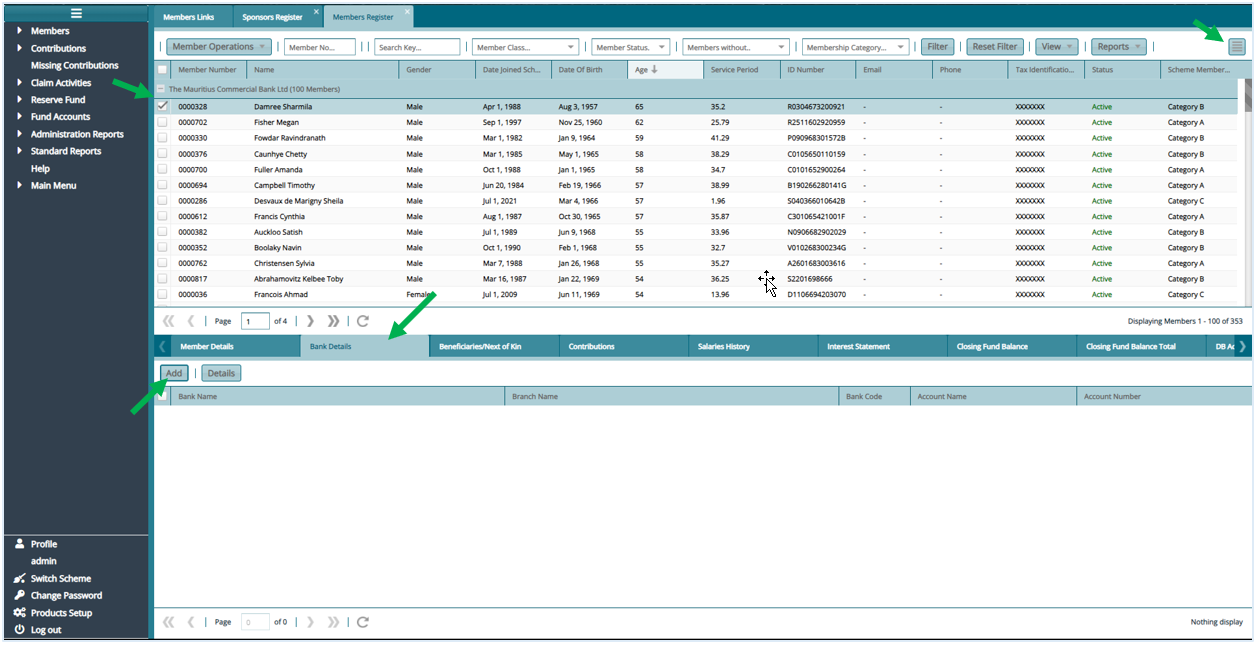
Search and select for the member to be processed.
Show additional member Details by clicking on the expert links on your right and then "Show Details" on the dialog that pops up.
Locate the "Bank Details" Tab.
If member has no bank details click on "Add"
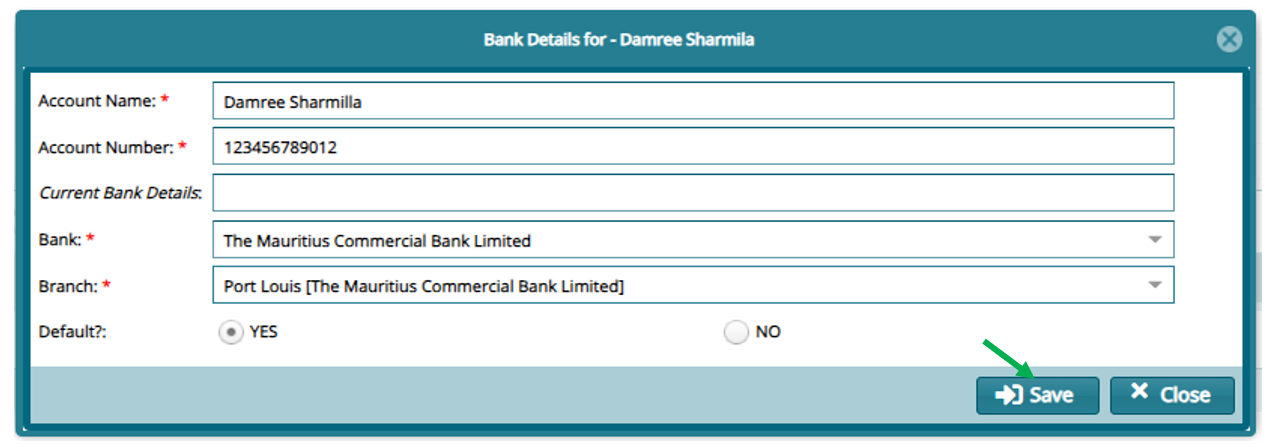
- On the window that opens, input the member bank details and "Save"
Step 2: Approve Change in Memebr's Bank Details
On addition or change of bank details, Proceed to "Registers" and then on "Member Items for Approval"
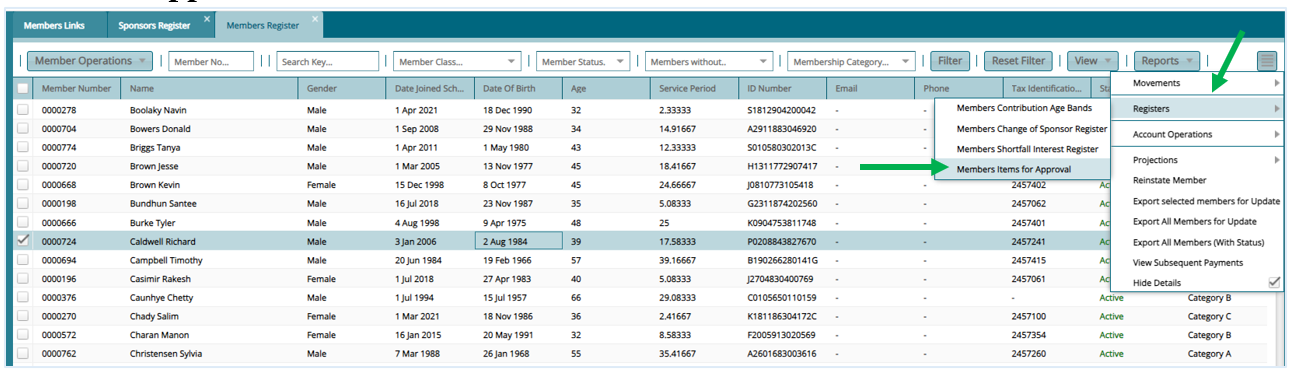
- From The Register that opens: Select the record and proceed to do certification

Step 3: Initiate a Member's Claim for Processing
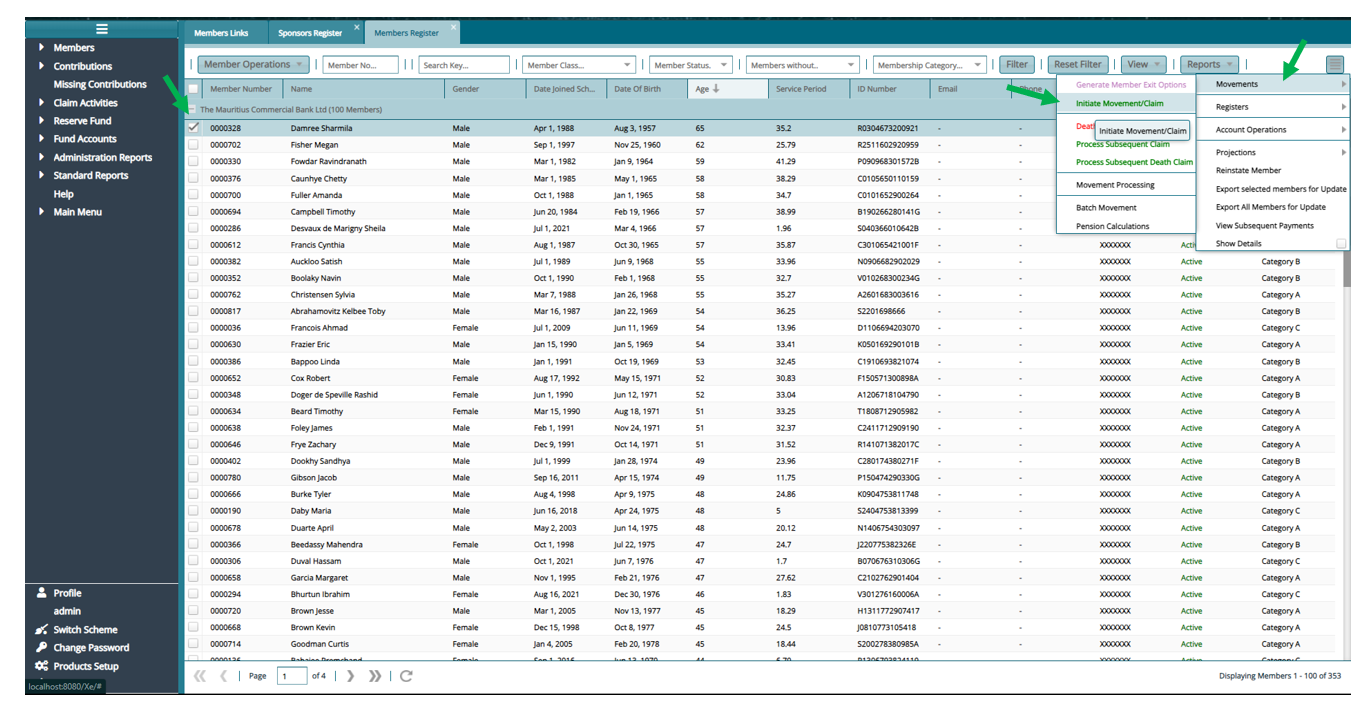
To initiate the claim for a member - Active (apart from a death claim)**
a. Click on the expert links on your right. Then click on "Movements" then "Initiate Movement/Claim"
For Deferred Members:
- Click on the expert links on your right. Then click on "Movements" then "Process Subsequent Claim" apart for Death claim.
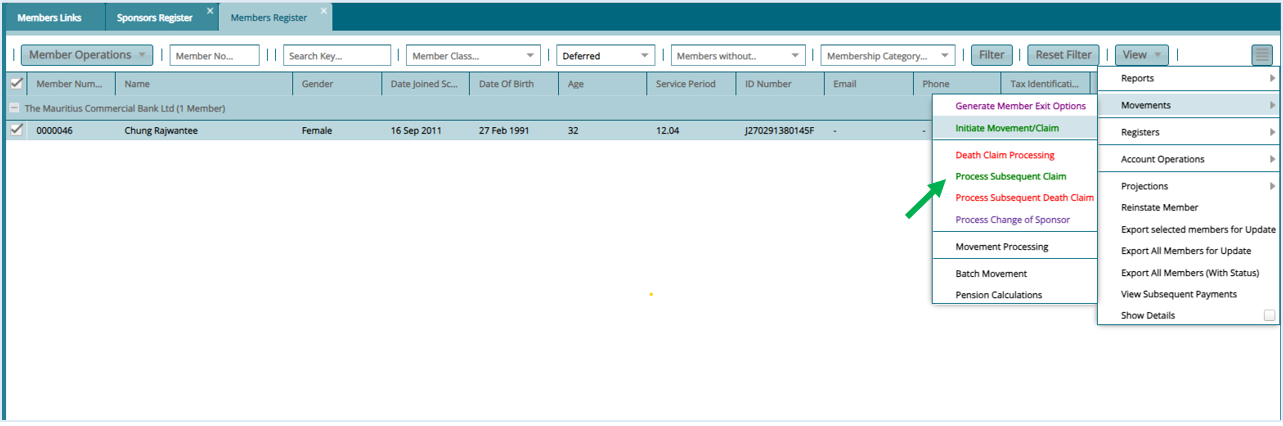
b. On the Window that opens input the required information and "Save"

Notice that the change of the member status upon save

Step 4: Initate Movement Processing
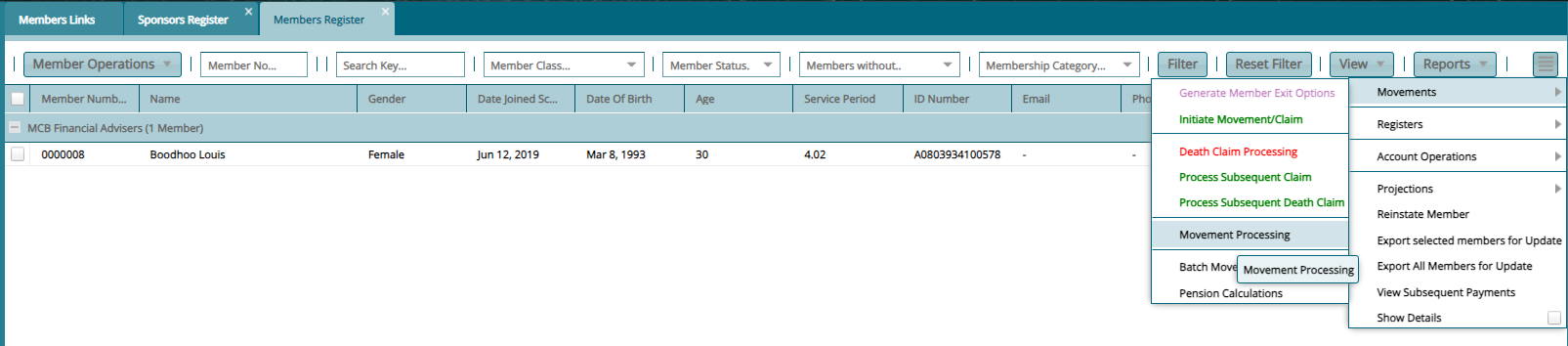
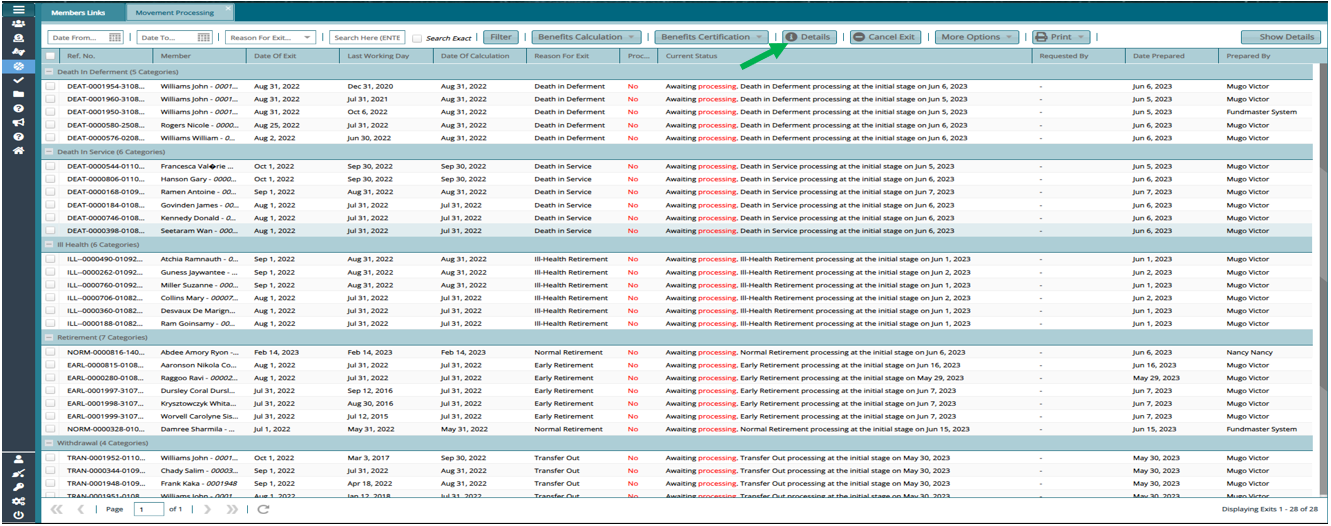
Proceed to the "Movement Processing" register to process the claim for the member**
- This register can be accessed from either the hotlinks or can also be accessed from the left panel "Claim Activities" then "Movement Processing"
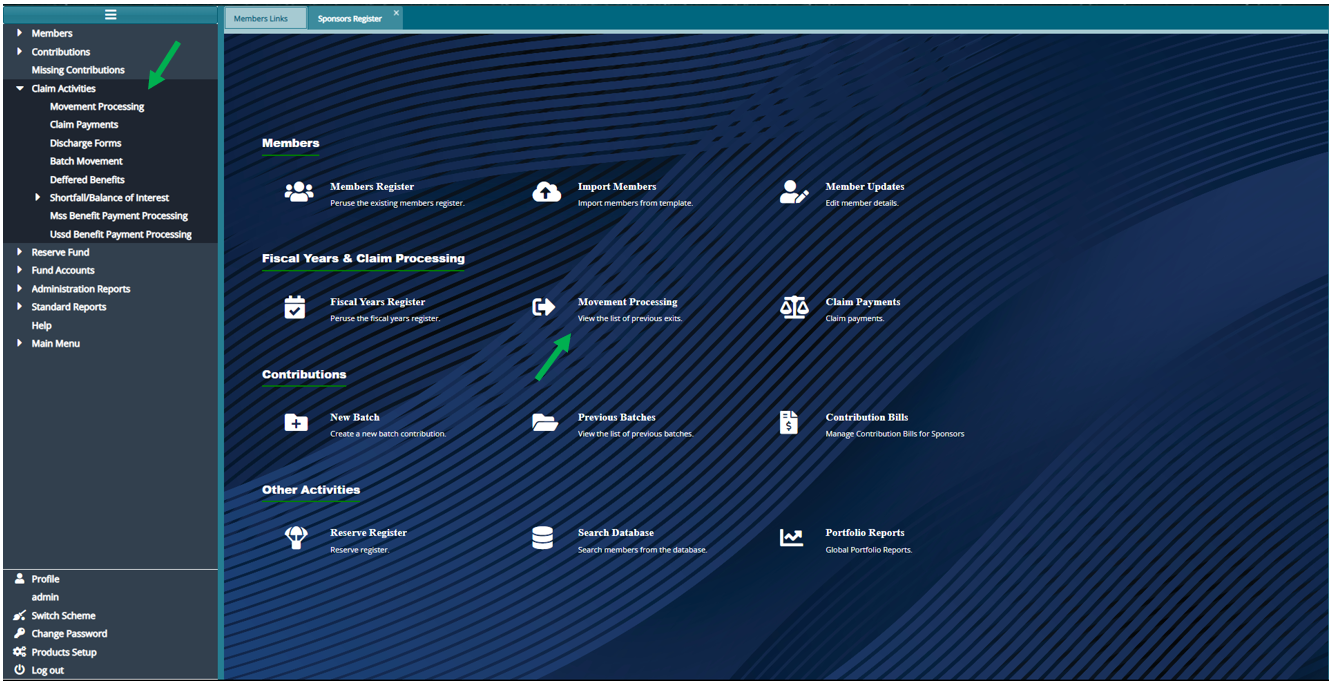
- Or from the "Members Register"
From the register that opens "Movement Processing", all claims will be listed here, and you can proceed to view details or do calculation for a selected claim.
Step 5: Process Claim Benefits
To calculate a claim, select on the claim you wish to calculate double click to show calculation or click on "Benefit Calculation" then "Show Benefit Calculation"

Step 6: Verify Benefit Calculation
Scroll to verify calculation and if the calculation is correct click on "Proceed Now"
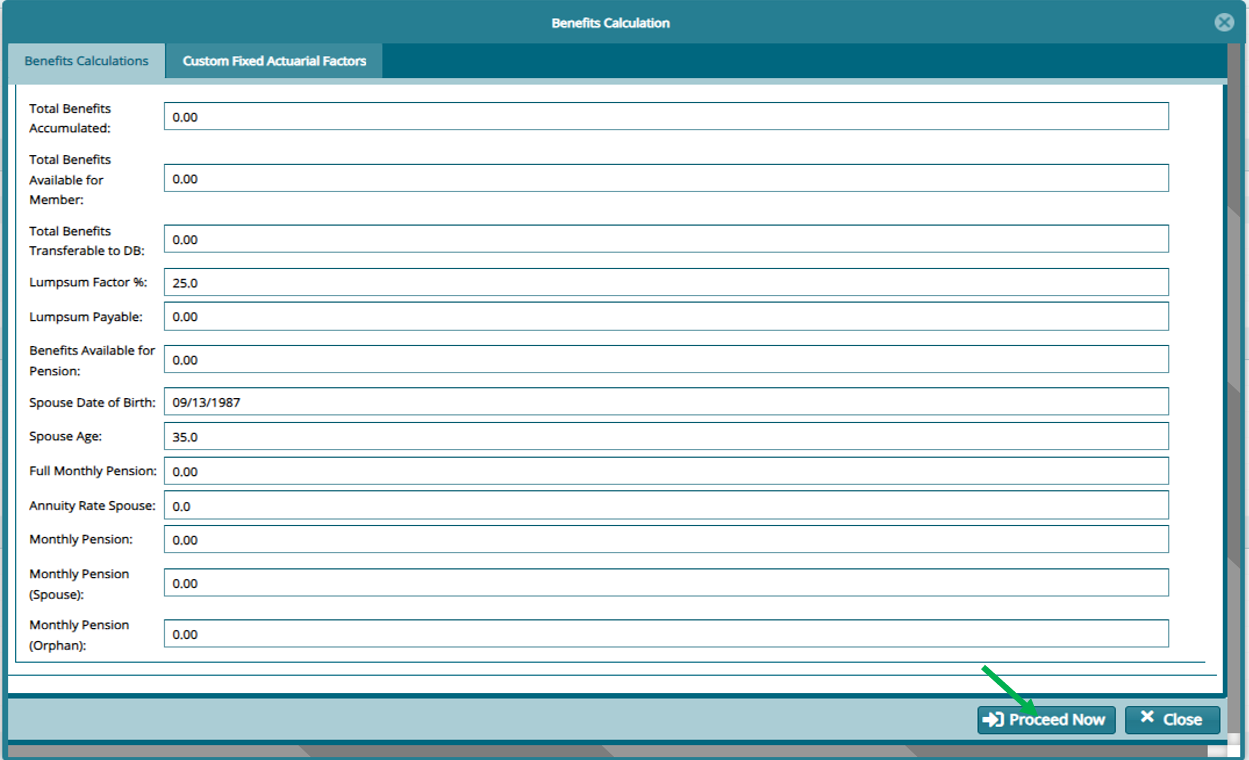
If the calculations require any custom factors click on the "Custom Fixed Actuarial Factors". Click on "New Custom Actuarial Factor" to add the factor. Close the calculation window and double click on it to recalculate.

Notice the change of status on calculated claim

Step 7: Certify and Authorize a Claim
Last step is to Certify and Authorize this claim

Step 8: Process Claim in Batch
For Batch Exits:
i. Open the "Member Register"
ii. On the register that opens "Sponsor Register". Shows the list of employers in the scheme and members can be viewed by Double Clicking on the Sponsor.
iii. Search and select for the member to be processed.
iv. Show additional member Details by clicking on the expert links on your right and then "Movements" and then "Batch Movement" on the dialog that pops up.
v. Or under Claim Activities on the left pane, Click on Batch Movement
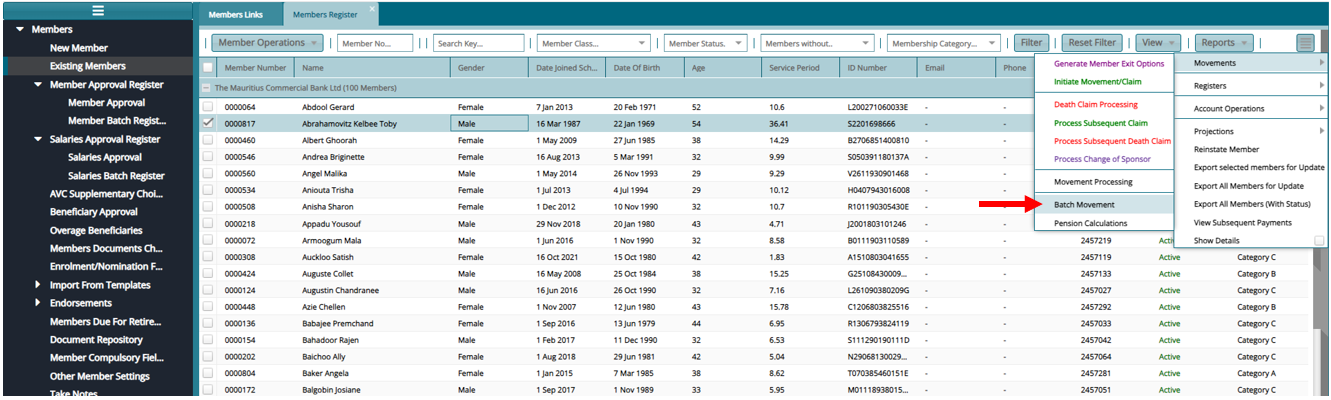
vi. Download the latest template
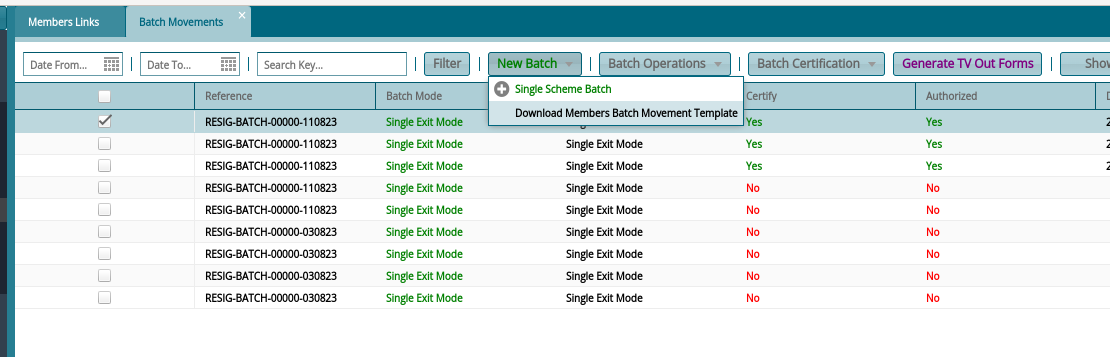
Prepare the template based on the reason of exit
Import the template under New Batch >> Single Scheme Batch
After a successful import, Process certification under Batch Certification >> Certify >> Authorize
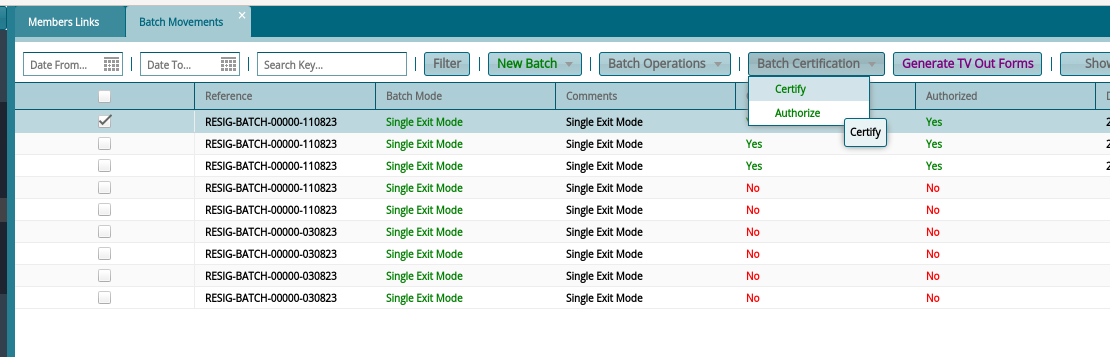
After this step, you may proceed to the movement processing register as shown above (step 3- 6 above).
Step 9: Death Claim Initialization
For Death Claim Initialization: Click on the expert links on your right. Then click on "Movements"
For active members -- "Death Claim Processing"
For Deferred - "Process Subsequent Death Claim"
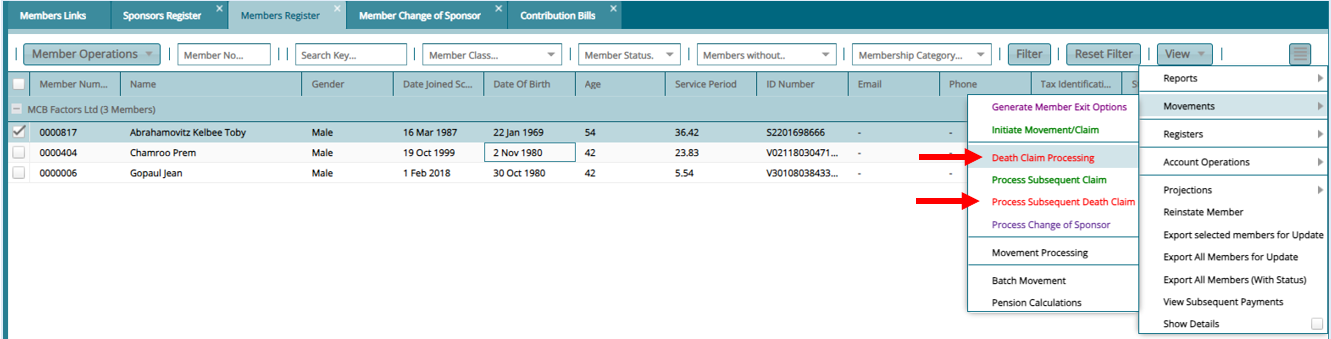
On the Window that opens input the information required and click on save. Proceed to "Movement Processing" to do the actual calculation as in the steps above.
Step 10: Add memebr Beneficiaries
click on "Benefit Calculation" then "Show Benefit Calculation"
On the Window that opens click on the beneficiaries' tab and then on New Beneficiary
