
# Adding Single Contribution
Step 1: Navigate to the Members Single Contributions Form
Action
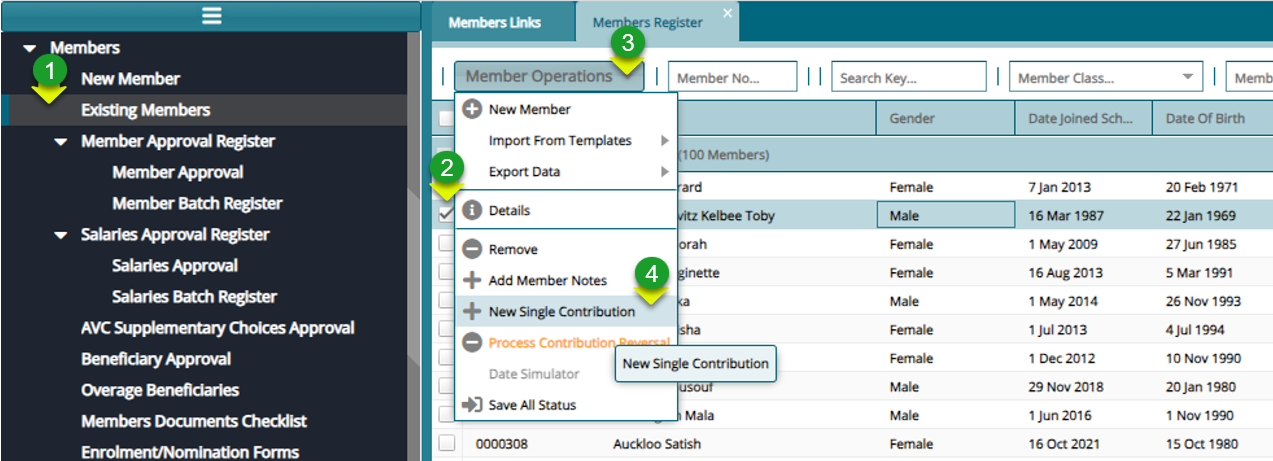
Click "Existing Members" menu to open Members register
Click the "Check Box" to select a member from the list
Click "Batch Operation" menu to open drop-down menu
Click "New Single Contribution" to load the contributions dialog form
Step 2: Navigate to the Members Single Contributions Form
Action
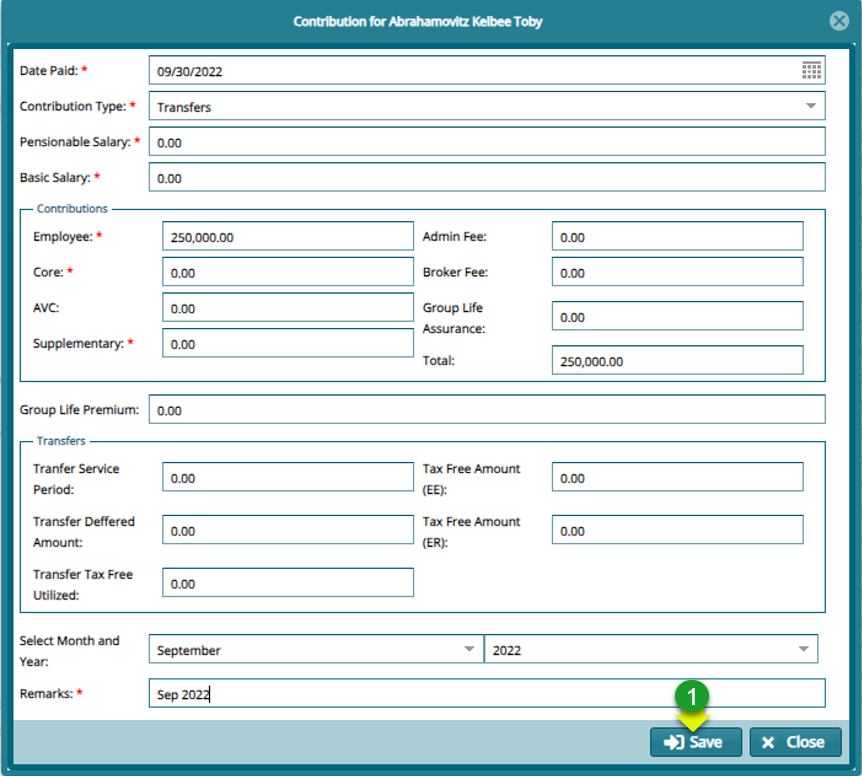
Click on "Mandatory text fields" to provide needed information
Click on "Save" button to complete the process
Step 3: Authorizing the Single Contribution
Action
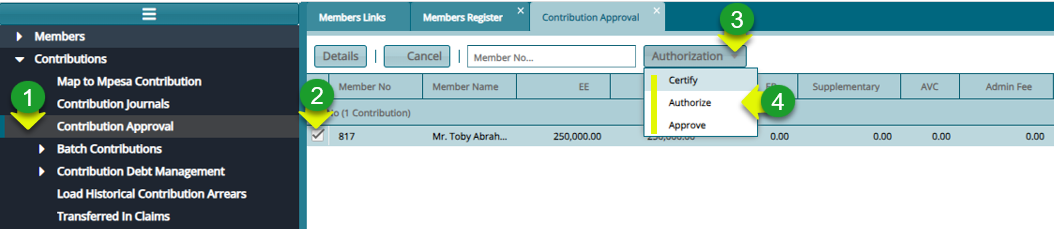
Click on "Contribution Approval" menu on the left pane
Click on "Check Box" to select a member contribution record from the list
Click on" Authorization" menu to open a drop-down menu
Click on "Certify, Authorize and Approve"
Step 4: Authorizing the Single Contribution
Action
- Click on "Post" button
📝Note: On approval the contribution will be posted to the member account.
Step 5: For Contribution Reversal
Action
On the members register, search, and click to select the member to add contribution for
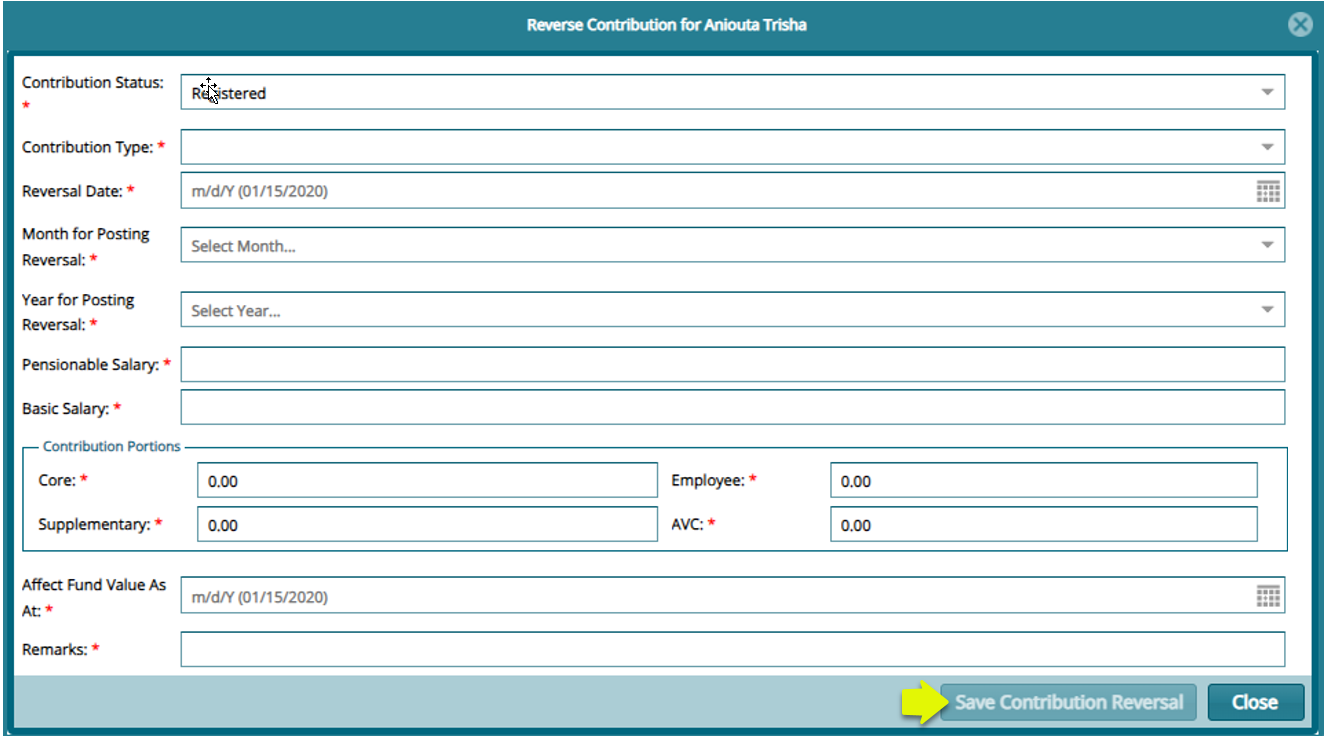
Click on "Member Operations" menu and on the drop-down, click "Process Contribution Reversal"
Fill in the mandatory fields on the reverse form
Click "Save Contribution Reversal" to commit changes
Proceed to contribution approval and approve window