
# Members Opening PMA
# Loading Members Opening PMA into the System
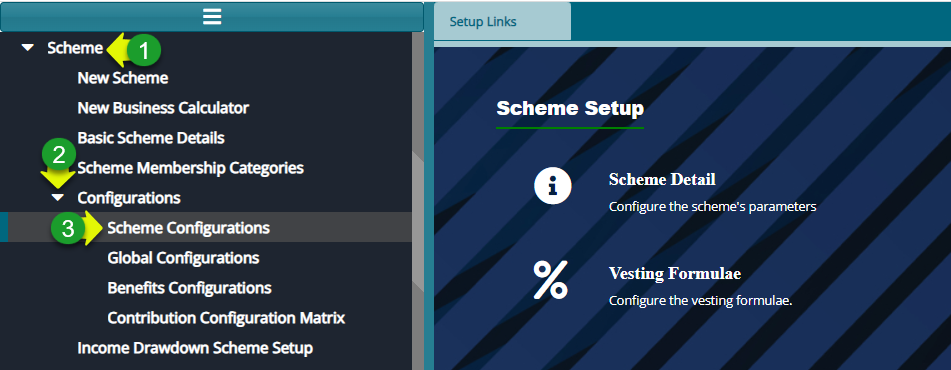
Step 1: locate the contribution and balance configurations dialog window
Action
Navigate to the Scheme Set up module and click on "Scheme" menu
From the drop-down menu, click on "Configurations"
From the Configurations drop-down menu, click on "Scheme configurations" to open a scheme configurations dialog box
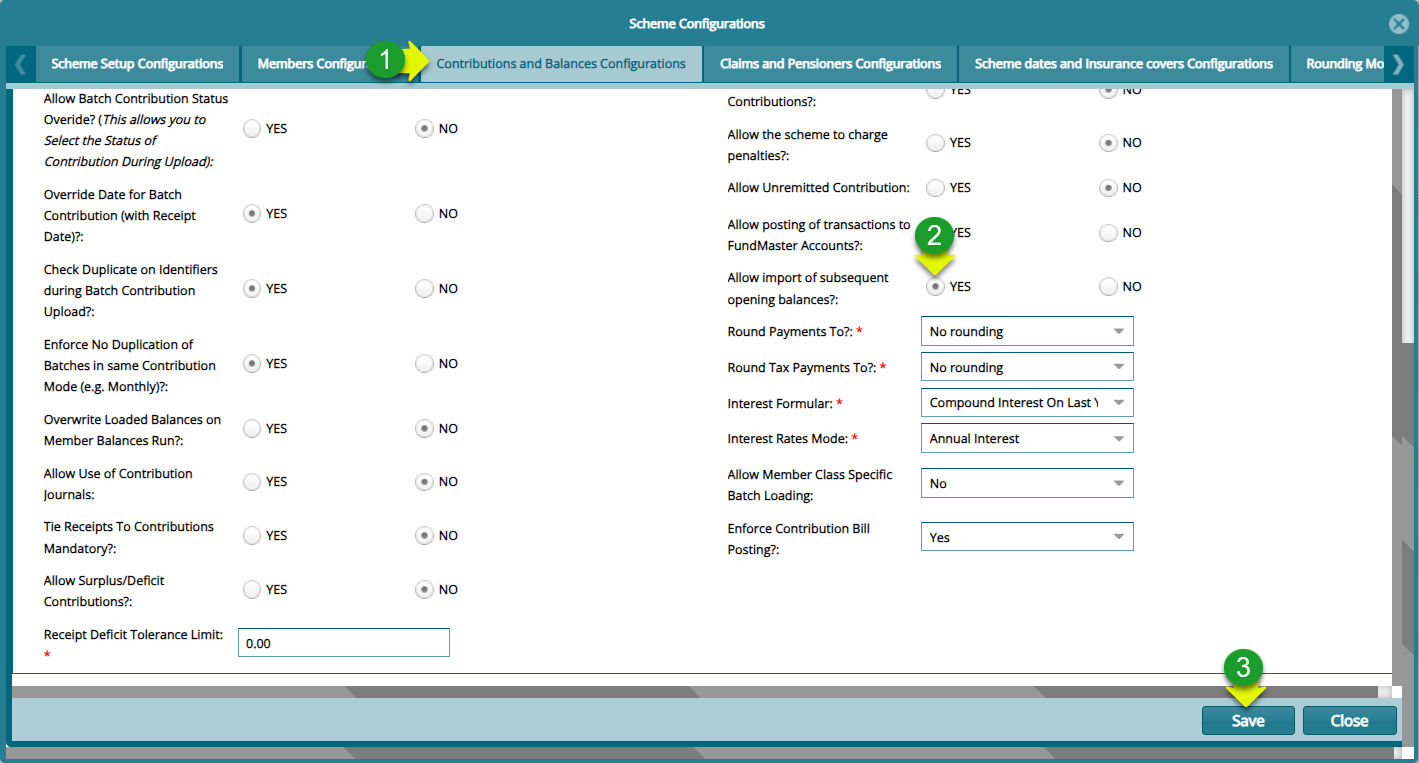
Step 2: Config the System to Allow importation of Subsequent Opening Balances
Action
Click on the "Contribution and Balances Configurations" tab
Click to check "YES" to activate the Allow Importation of Subsequent opening balances
Click on the "Save" button and refresh your browser for changes to take effect
Step 3: Navigate to the Historical Contributions Menu

Actions
Click on "Members" menu
Click on "Import from Templates" menu to open a drop-down menu
Click on "Historical Contributions" to load the upload dialog window
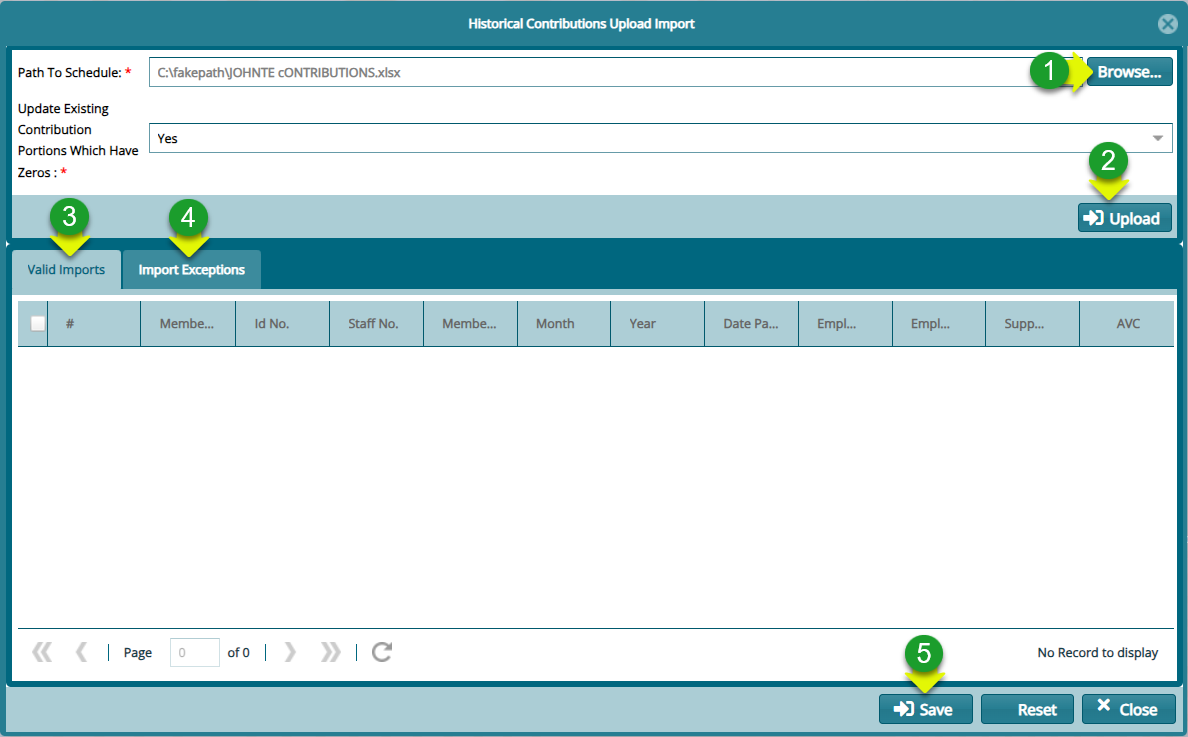
Step 4: importing Historical Contributions using a template
Actions
Click on "Browse" button to pick the template from your device
Click on "Upload" button to load the template into the system
Click on "Valid Imports" to view the records
Click on "Import Exceptions" to confirm import exceptions
Click on "Save" button to complete the process