
# Member Salary Update Process
# Updating Member Salaries in Batch
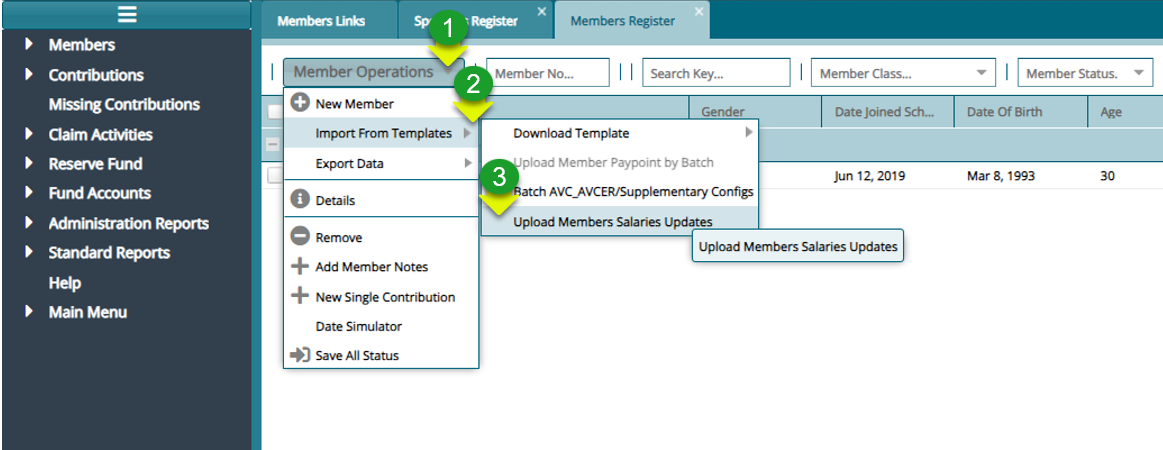
Step 1: Upload the Members salary template from the Members Register
Actions
Click on the "Members Operations" drop-down menu
Click on "Import From Template" drop-down menu
Click on "Upload Members Salaries Updates" menu item
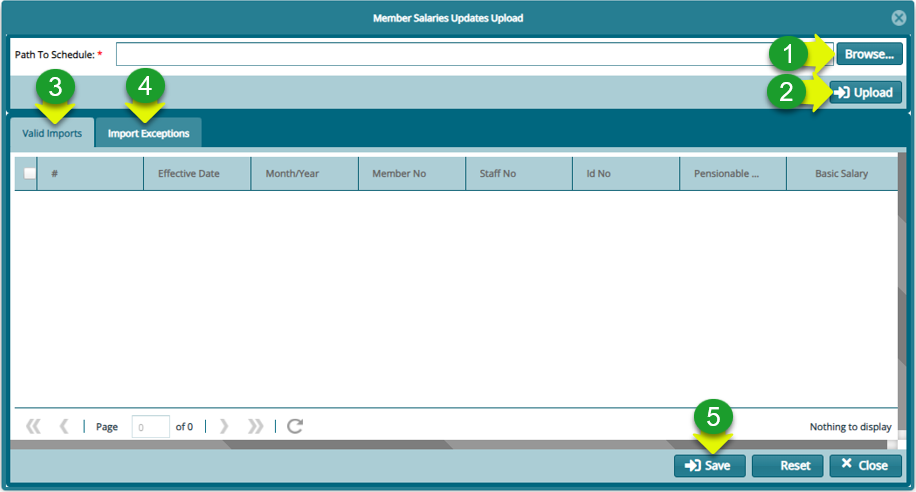
Step 2: Upload members salary and validate records
Actions
Click on "Browse" button to load the file
Click on "Valid Imports" tab to view imported records
Click on "Import Exceptions" tab to confirm import exceptions
Click on "Save" button to update salary records
# Updating a Single Member's Salary
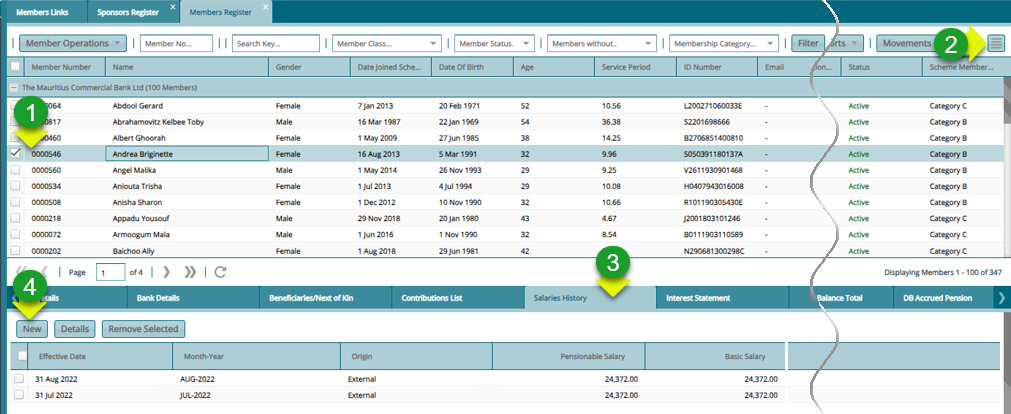
Step 1: Navigate to the members register
Actions
Click to select a member from the list
Click on "Show Details" hamburger icon to load a lower section
Click on "Salary History" tab
Click on "New Salary" button to load a dialog box
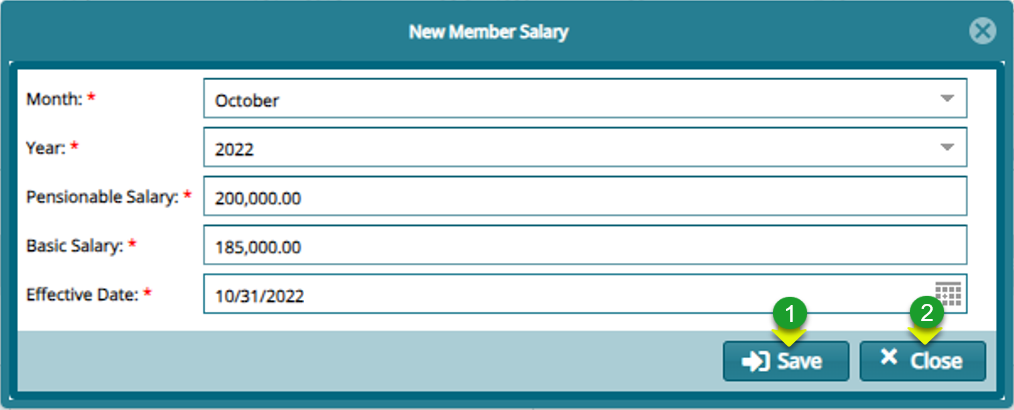
Step 2: Fill in members salary details
# Approving Members salary updates
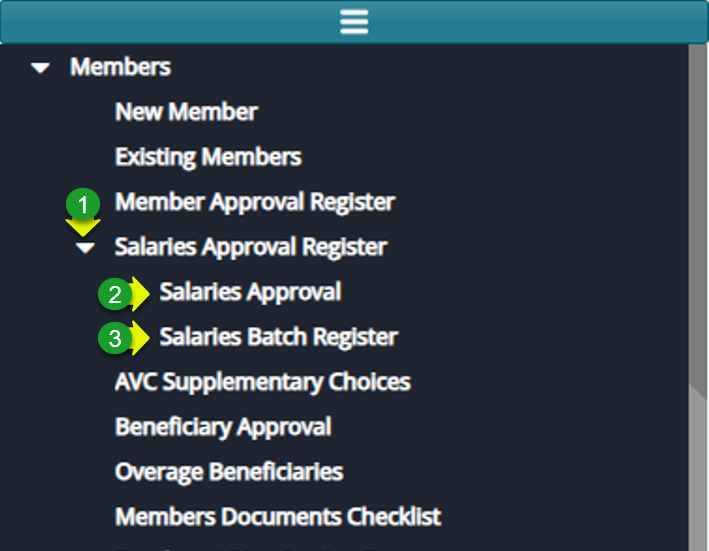
Step 1: Navigate to the Salaries Approval Register Menu
Actions
Click the "Salaries Approval Register" from the left side pane
Click "Salaries Approval" for salaries created from salaries History
Click "Batch Salaries Approval" for salaries uploaded as a batch
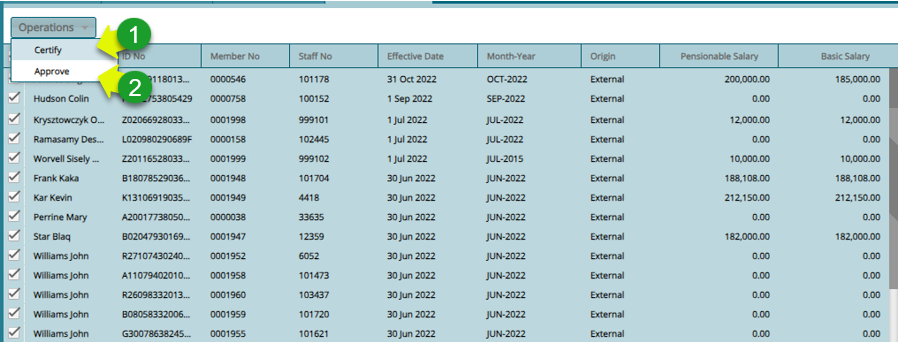
Step 2: Certify and Approve the updated salaries
Actions
Click "Certify" from the Operations menu
Click "Approve" from the Operations menu