
# Cash Supplementary Rates
# Updating Cash Supplementary Rates in batch
Step 1: Navigate to AVC_AVCER/Supplementary Configs window
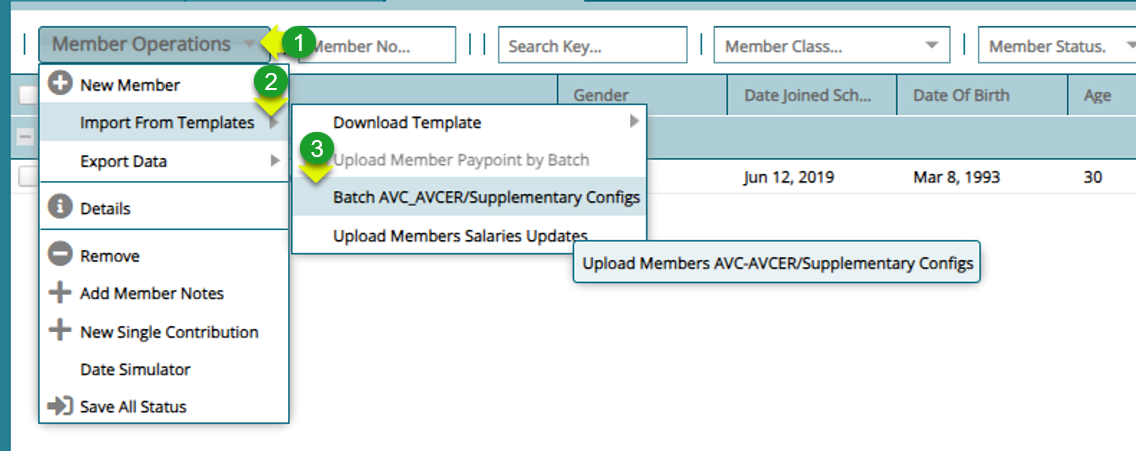
Actions
Click "Members Operations" menu
Click "Import from Templates" from the drop-down menu
Click "Batch AVC_AVCER/Supplementary Configs" to open a dialog window
Step 2: Upload AVC_AVCER/Supplementary Configs records
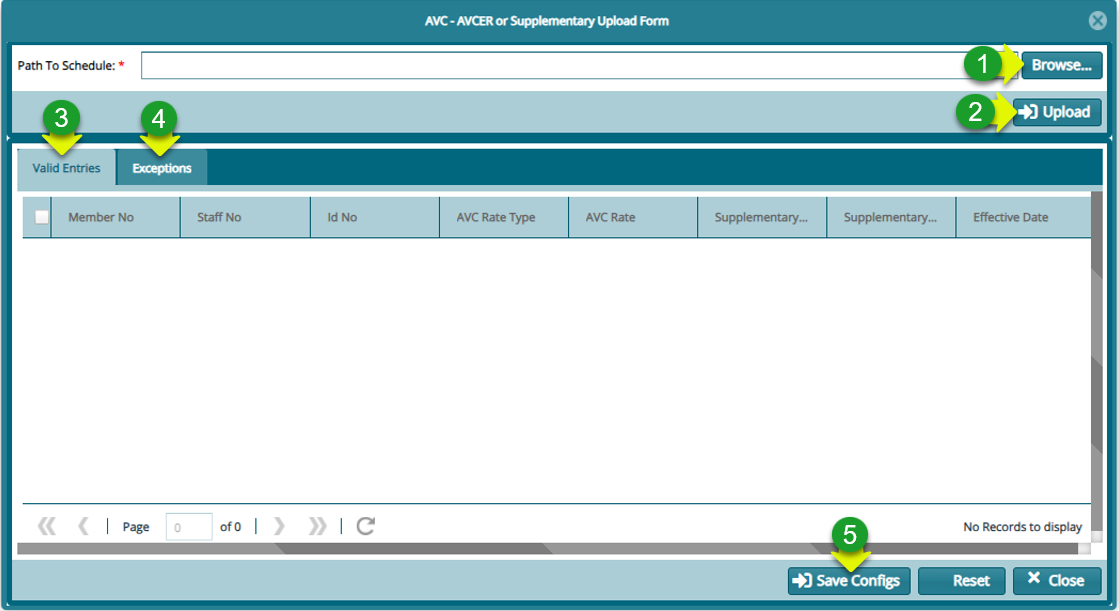
Actions
Click on "Browse" button to load the file
Click on "Valid Imports" tab to view imported records
Click on "Import Exceptions" tab to confirm import exceptions
Click on "Save" button to update salary records
# Update Cash Supplementary Rates for a Single Member
Step 1: Navigate to AVC_AVCER/Supplementary Configs window
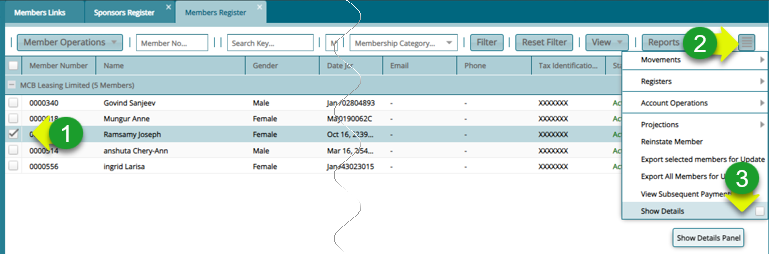
Action
Click to Select on the Member from the Member Register
Click "Hamburger icon" on the upper right corner
Click "Show Details" check box
Step 2: Open AVC_AVCER/Supplementary Config dialog box
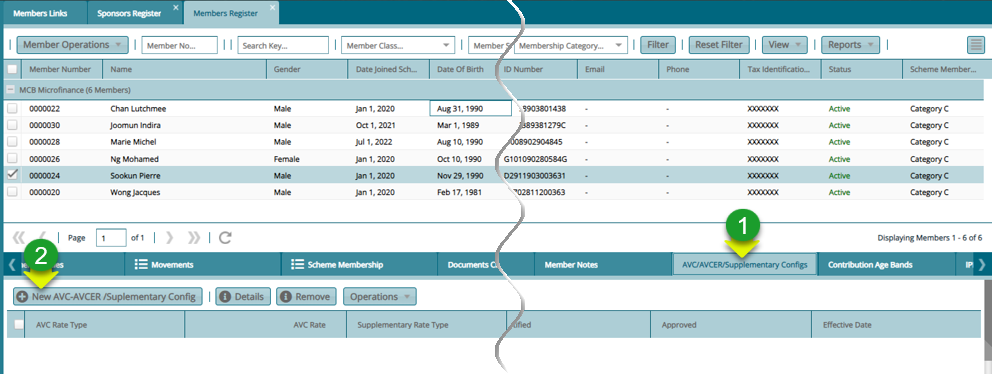
Action
Click "AVC_AVCER/Supplementary Config" tab
Click "New AVC_AVCER/Supplementary Config" button to open a dialog box
Step 3: Adding a New AVC_AVCER/Supplementary Config
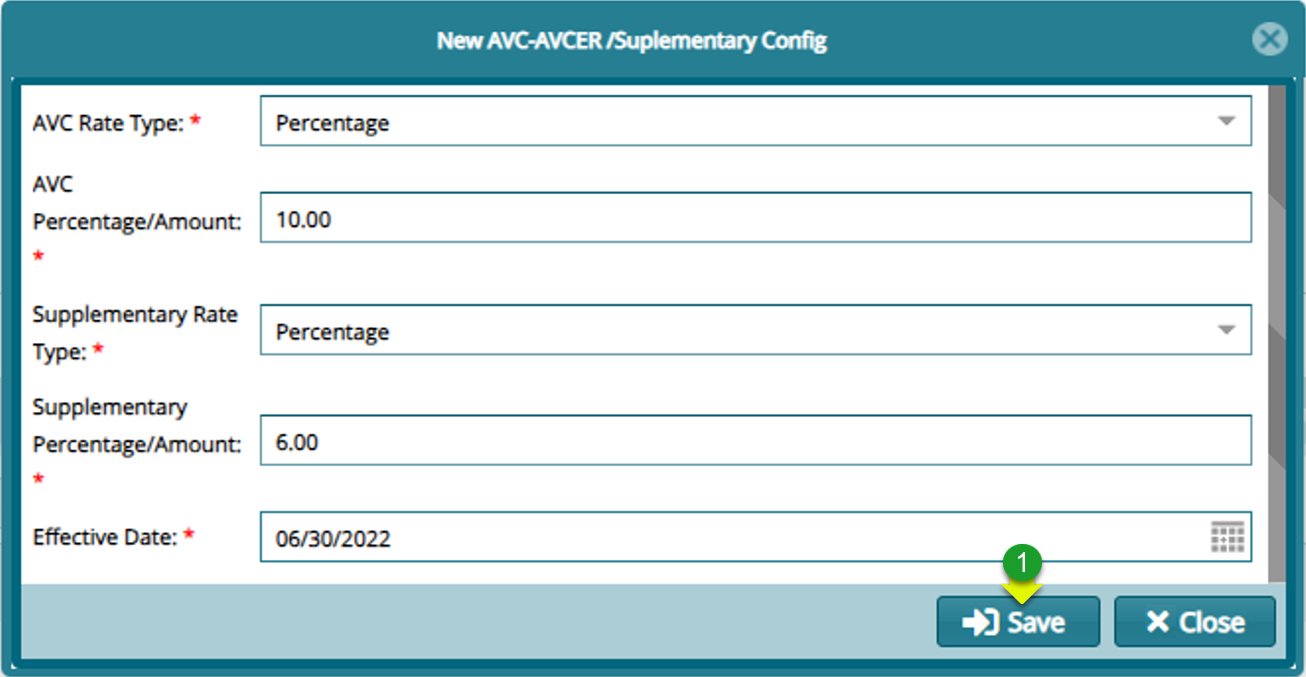
Action
Click "Form fields" select and provide the right values
Click "Save" button to confirm the values
# Approving Cash Supplementary Rates -- in Single and Batch
Step 1: Navigate to the Salaries Approval Register Menu
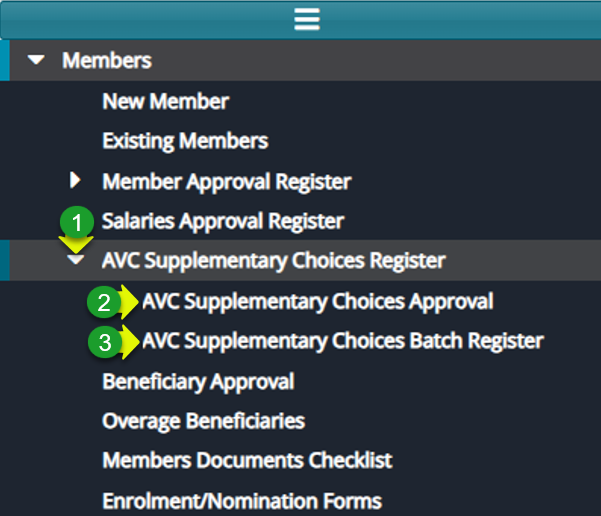
Action
Click "AVC Supplementary Choices Register" menu
Click "AVC supplementary Choices Approval" item for single approval
Click "AVC supplementary Choices Batch Approval""item for batch approval
Step 1: Approve a single members Supplementary Rates
Action
Click to select a member from the register
Click "Operations" menu to open drop-down menu
Click "Certify" and "Approve" respectively to authorize the rates
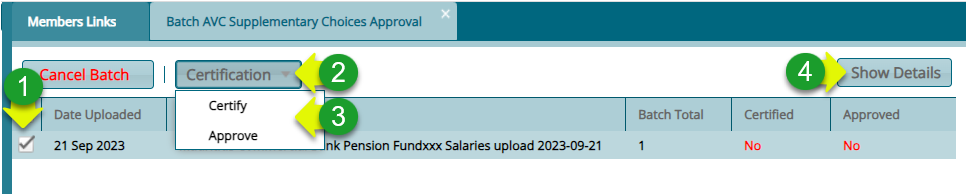
Step 2: Approve Members Supplementary Rates in Batches
Action
Click to select a batch file from the register
Click "Certification" menu to open drop-down menu
Click "Certify and Approve" respectively to authorize the rates
Click "Show Details" to view individual members details in the batch