
# SMTP Setup
To achieve this, do the following steps:
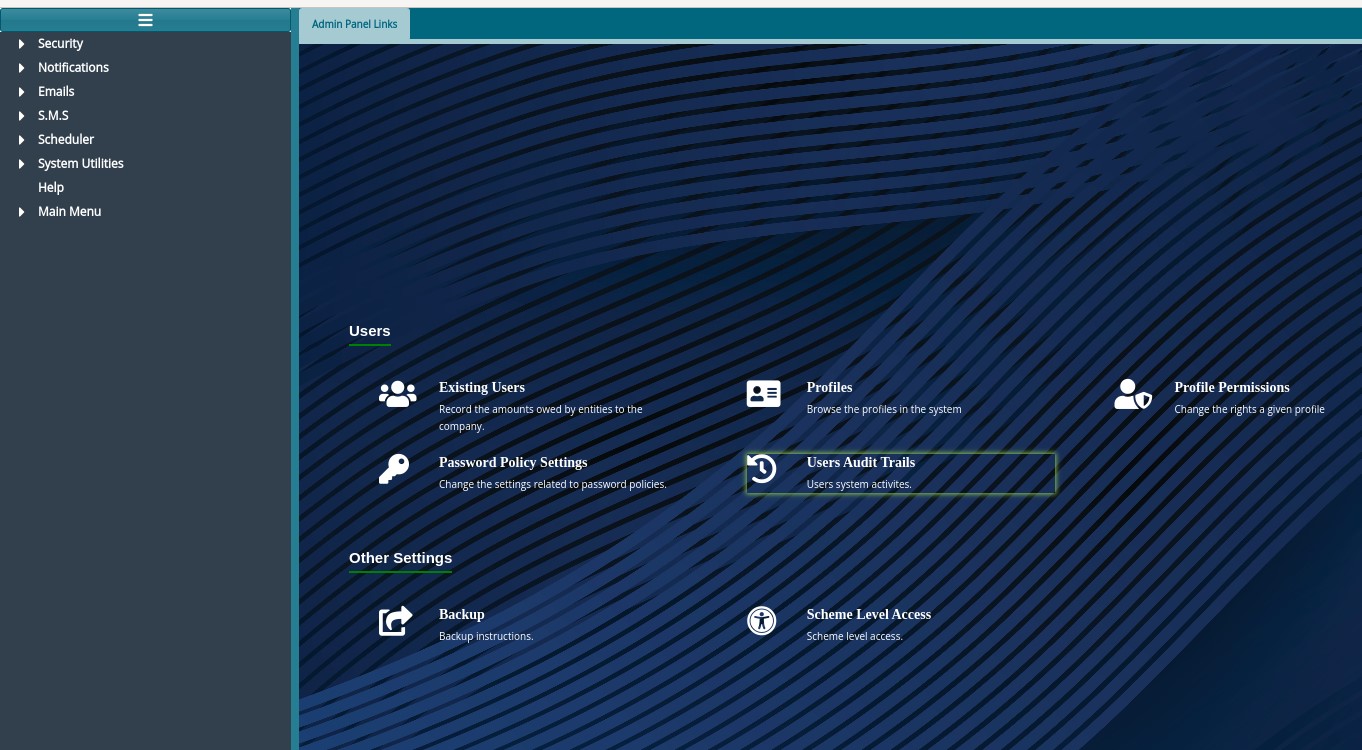
Step 1: Access Administrative Panel

See notificatiobs menu on the right side panel below:
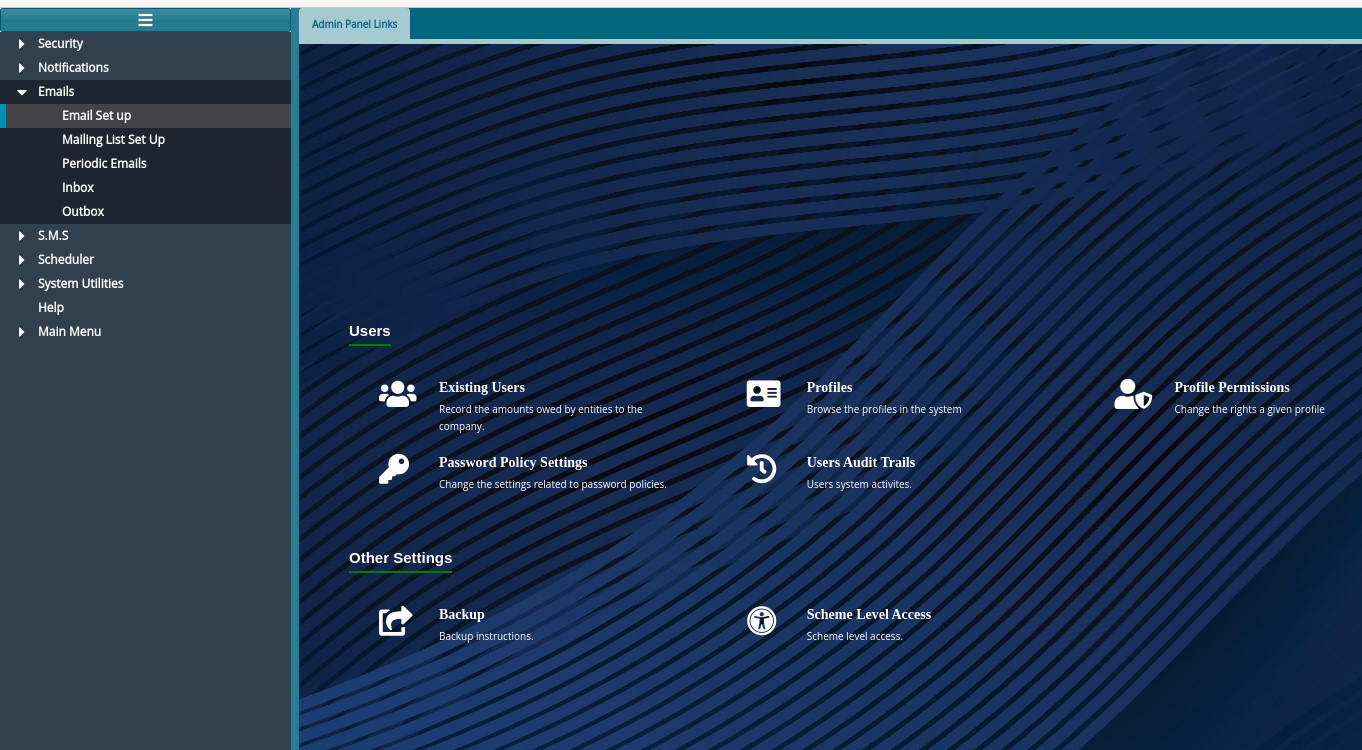
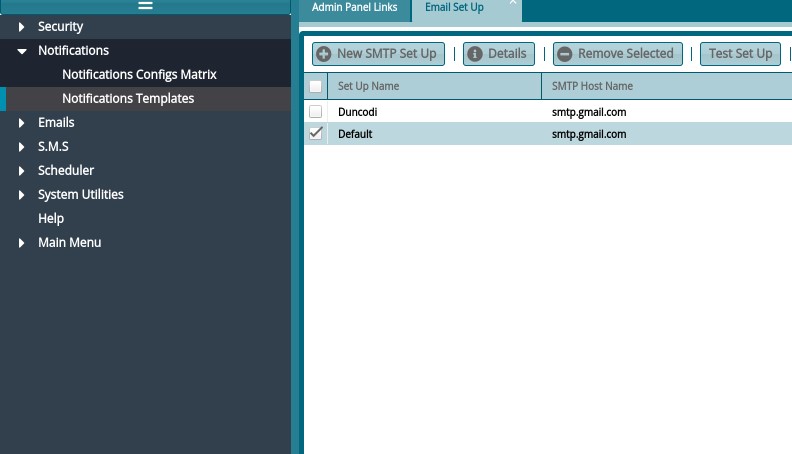
Step 2: Access the Email Setup window
On the left pane, access Email Setup under Emails menu
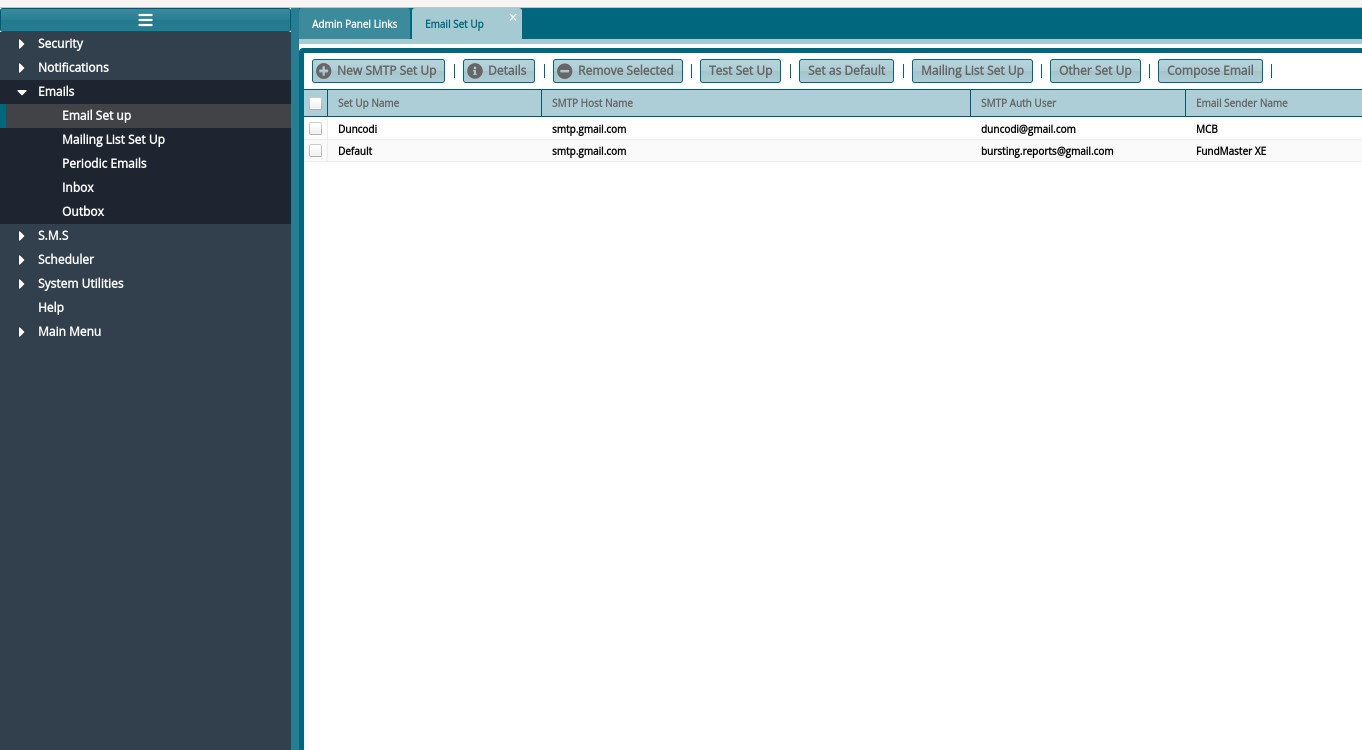
See email setup window below:
Step 3: Create a New Setup
To Create a New Setup, click on New SMTP Setup
To Edit, Click on Details
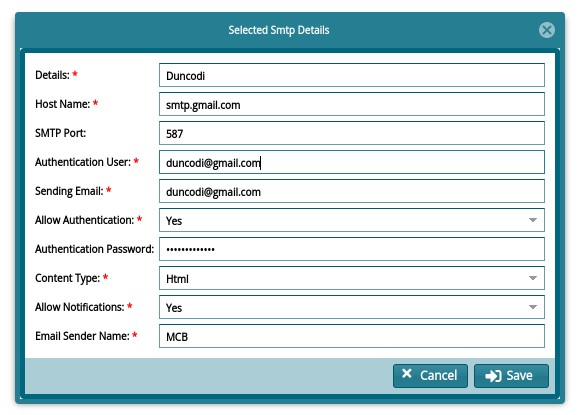
Legend
Details - Name of the setup, e.g. "My Favorite SMTP Config"
Host Name: Provided by ICT
Port: Provided By ICT
Authenticating User: A valid email address
Sending Email: Any email address (we recommend a valid one, in case a client wants to respond to it or if you don't want response, you can set as [noreply@company.com]{.underline})
Allow Authentication: set to Yes
Authentication Password: Valid Authenticating User PASSWORD
Content Type: HTML
Allow Notifications: YES
Email Sender Name: Your favorite email sender name e.g. My Good Company
Save form
Step 4: Test SMTP
Test SMTP by clicking on Test Set Up
Step 5: Set Default SMTP
Set as default SMTP: Click on Set as Default Your correct setup should look like this list:

Notice the 3 YES, YES, YES
Your emails are ready to go now. Happy Setup!